Published
In DeepChart, a template stores one chart's configuration (indicators, styles, settings) and a workspace stores the whole layout, multiple charts included, locally or in the cloud. DeepCharts also ships ready made OrderFlow templates and workspaces tuned for NQ, ES and GC. This tutorial covers saving and loading, then picking a bundled template and what it configures for you.
- DeepChart installed, with a data feed connected to see the templates at work
- According to the help center, the OrderFlow templates are available on every plan (Pro, Advanced, Orderflow Version)
Step by step
- 01
Tell a template from a workspace
A template is one chart: its indicators, their styles and settings. A workspace is the full session: several charts, their indicators, the profiles. A simple rule of thumb: one template per analysis setup (your 1 minute NQ footprint, your 5 minute profile view), one workspace per way of trading (your morning screen with three charts and a DOM). Both spare you from rebuilding everything at each launch.
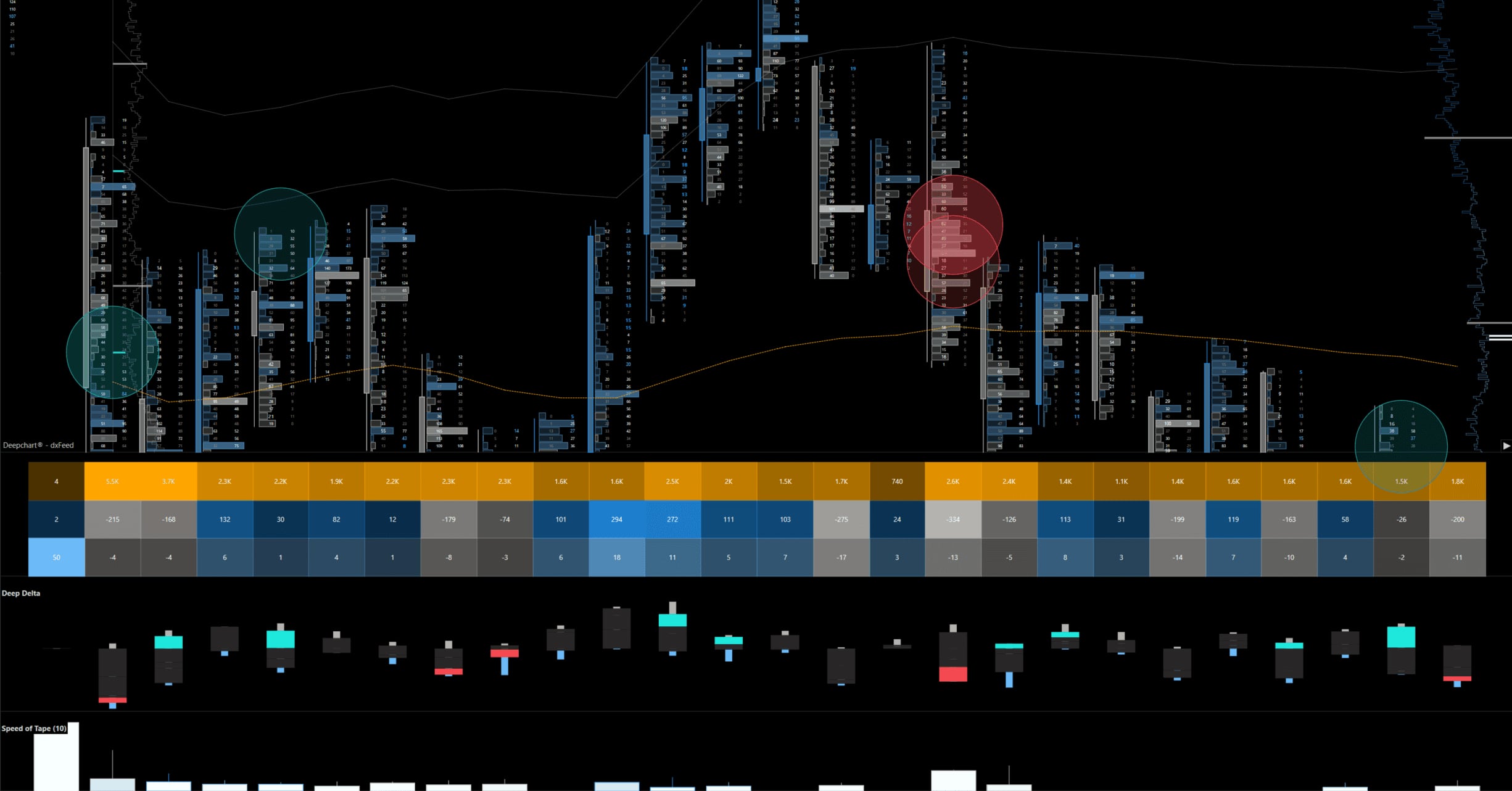
Screenshot to comeThe Advanced Orderflow template loaded: footprint, Big Trades bubbles, DeepStats, Deep Delta and Speed of Tape.
- 02
Save and load a template
Right click anywhere on the chart, then Template. Save As stores the current setup under a name, Load brings one back onto the open chart. Save a template as soon as a configuration works for you: it is the only way to reuse it on another chart or symbol without starting over.
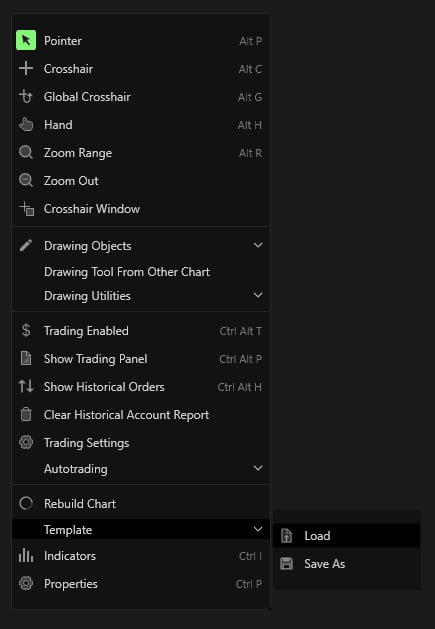
The chart context menu, Template submenu with Load and Save As.© DeepCharts - 03
Save and open a workspace
Click the workspace name at the top right of the DeepChart bar (Untitled until it has been saved). The panel offers New to start from scratch, Save as to store the layout under a name and Open to load one. The disk icon saves the current workspace under its current name.
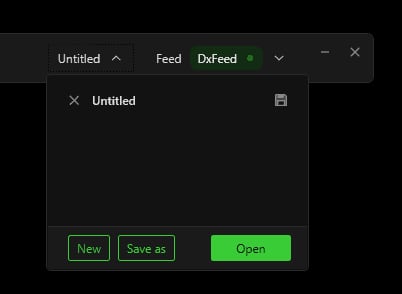
The workspace panel with the New, Save as and Open buttons.© DeepCharts - 04
Choose where the file lives: Local, Cloud or Shared
The File Picker that opens on load has three sources. Local keeps the file on your machine, Cloud ties it to your account so you can find it on another PC, Shared holds shared files, including the OrderFlow templates and workspaces supplied by DeepCharts under cloud/OF VERSION. If you switch machines often, save your own setups to the cloud.
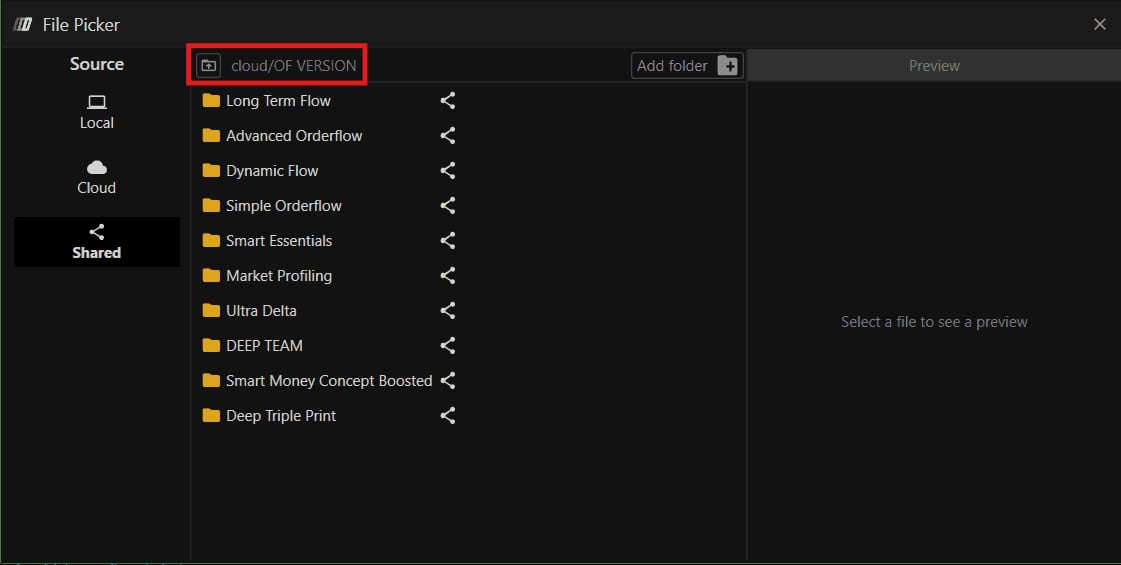
The File Picker on Shared, cloud/OF VERSION path, listing the OrderFlow templates.© DeepCharts - 05
Load a bundled OrderFlow template
Right click the chart, Template, Load, then Shared and the OF VERSION folder. Templates are grouped by style: Smart Essential (5 minute, Big Trades, volume and profile, a good starting point), Simple Orderflow (1 minute, Bid/Ask footprint, CVD, key levels), Advanced Orderflow (1 minute, the full picture with Deep Profile, VWAP and Speed of Tape), Ultra Delta, Dynamic Flow, Long Term Flow, SMC Boosted, Market Profiling and Deep Triple Print. Open the template, then the color subfolder (Dark, for instance) and the file you want.
- 06
Pick a color theme
Every template and workspace comes in several themes: DeepVision (purple and green), Apollo (orange), Classic Green, Neptune (blue), Mars (red), SMC and Classic Blue. Only the palette changes, the indicators and their logic stay the same: pick whichever is easiest on your eyes over a long session.
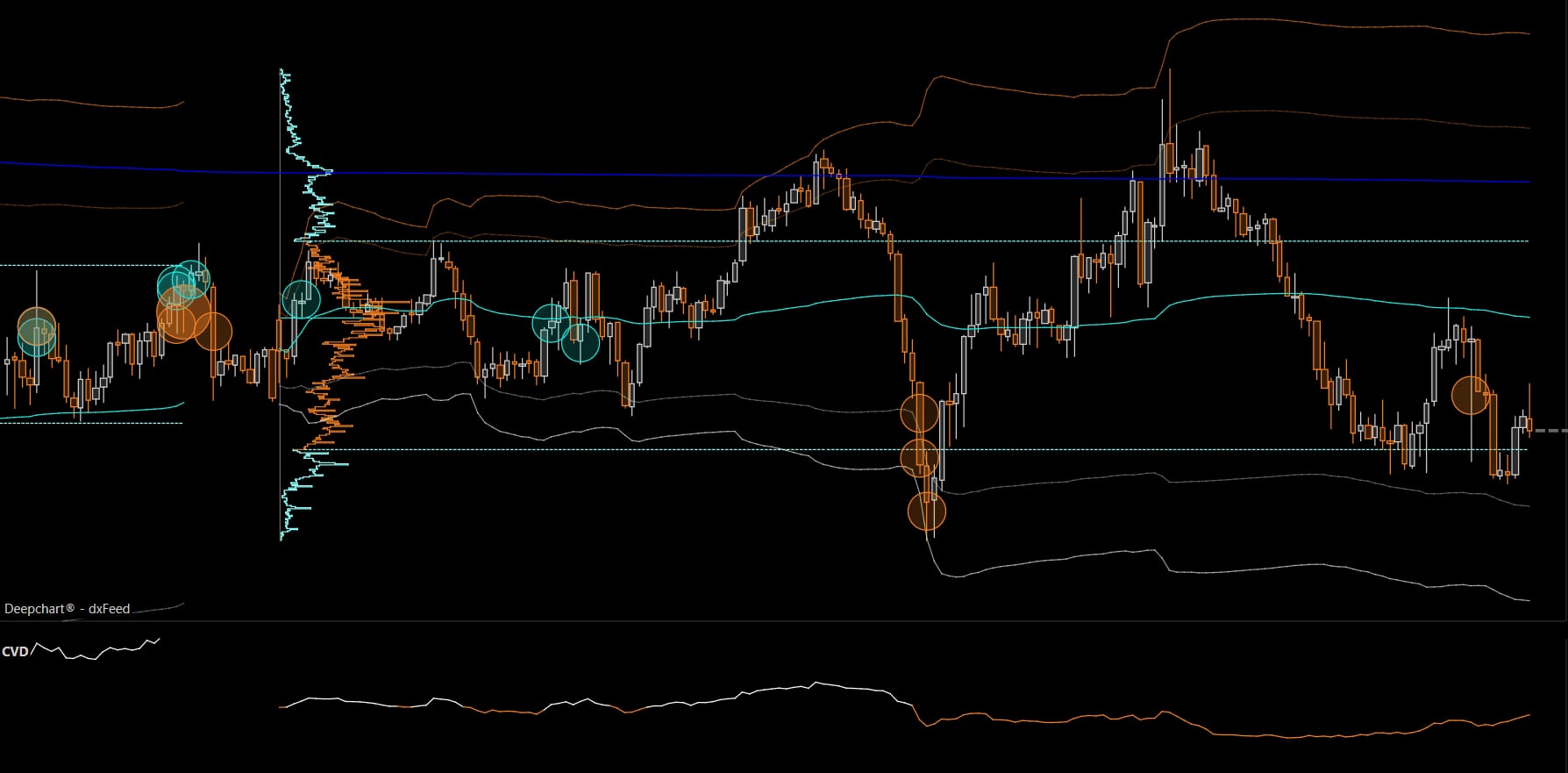
An OrderFlow template in the orange Apollo theme, with VWAP bands, profile, Big Trades bubbles and CVD.© DeepCharts - 07
Use the file for your symbol
Templates come as separate files for NQ, ES and GC because footprint tick grouping differs: NQ at 4 ticks manual (1 index point per row), GC at 3 ticks manual (30 cents per row), ES at 1 tick automatic (0.25 points, no grouping, since the book is thick enough to read tick by tick). Loading the NQ file on an ES chart gives an over compressed footprint; always take the file for the symbol on screen.
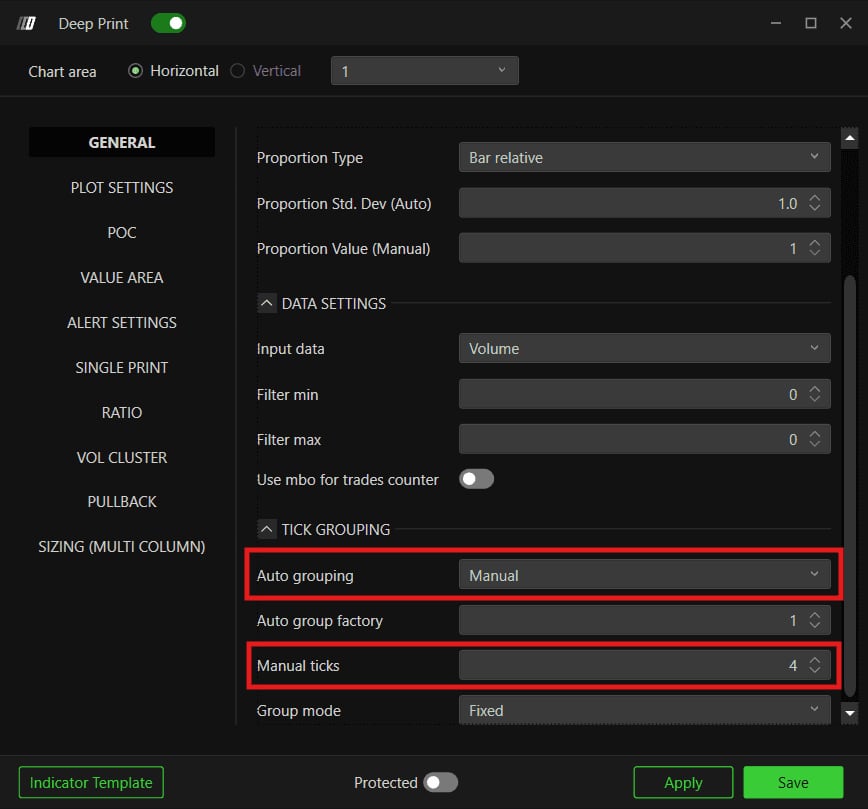
Deep Print, Tick Grouping section: Auto grouping on Manual and Manual ticks at 4 for NQ.© DeepCharts - 08
Understand the preset Big Trades filter
The templates' Big Trades filter is tuned per symbol and per timeframe. On 5 minute: NQ at 80 contracts (bubbles 35 to 50), GC at 60 (15 to 30), ES at 170 (6 to 11). On 1 minute: NQ at 60 (25 to 35), GC at 40 (13 to 20), ES at 150 (1.20 to 6). These are standardization values, not a rule: adjust them to market conditions, timeframe and preference, then save your version as a personal template.
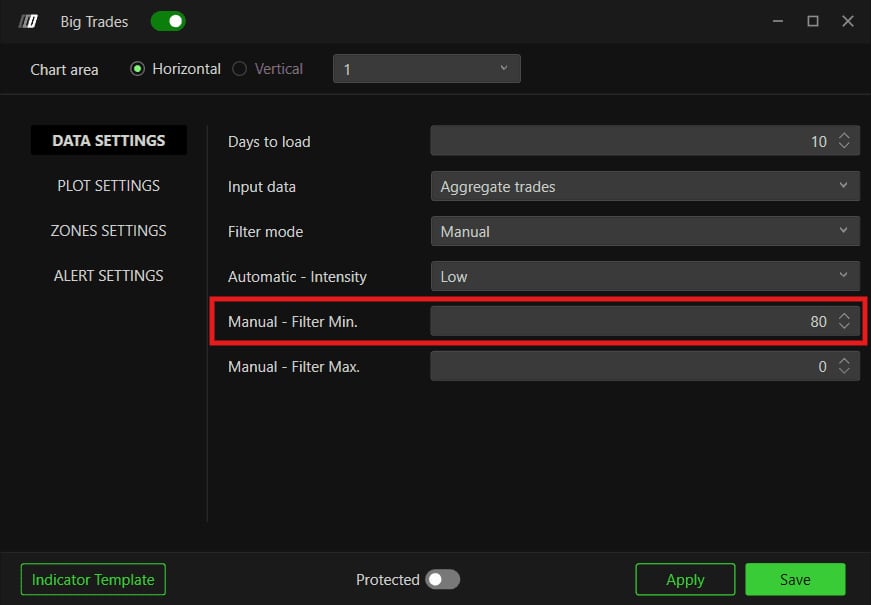
Big Trades Data Settings in the 5 minute NQ template: Manual Filter Min. at 80.© DeepCharts - 09
Load a full OrderFlow workspace
Click the workspace name at the top right, Open, then Shared and cloud/OF VERSION. Four workspaces combine the templates: Bias, Timing, and DOM (Market Profile, Dynamic Flow, Advanced Orderflow and Advanced DOM), Volumetric, Bias, and Timing (the same without the DOM), Orderflow Essentials (Smart Essential and Simple Orderflow) and DOMination (four DOMs: ES, GC, NQ, CL). Open the folder, pick the theme, then the file for your symbol.
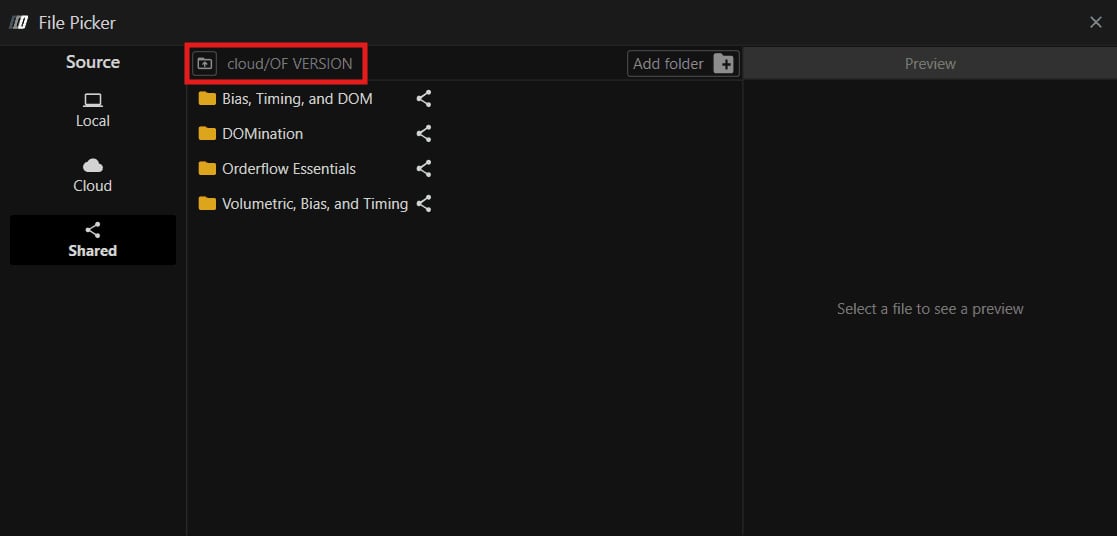
The File Picker on Shared, cloud/OF VERSION, with the four workspace folders.© DeepCharts
Settings, tab by tab
Stores the chart's indicators, styles and settings.
Loads a template onto the open chart.
New empty workspace.
Stores the whole layout under a new name.
Loads an existing workspace through the File Picker.
Files on your machine.
Files tied to your account, available on another machine.
Shared files, including the OrderFlow templates and workspaces (cloud/OF VERSION).
Values standardized by the DeepCharts team, adjustable.
That is 1 point, 30 cents and 0.25 points per footprint row.
Bubble sizes: 35 to 50, 15 to 30, 6 to 11.
Bubble sizes: 25 to 35, 13 to 20, 1.20 to 6.
Range bars: 10 points, 2.50 dollars and 3 points per bar.
⚠ Traps to avoid
- Loading another symbol's file. The tick grouping and Big Trades filter of an NQ template make no sense on ES or GC: the footprint becomes unreadable and the bubbles either vanish or flood the screen.
- Editing a bundled template without saving it under your own name. Use Save As to Local or Cloud: the original stays intact and your version is available on any chart.
- Keeping 5 minute Big Trades filters on a 1 minute chart. The templates use different thresholds per timeframe; if you change timeframe, load the matching file or adjust the filter.
- Saving locally when you switch PCs. A local file stays on that machine; to find your setups elsewhere, save them to the cloud.
FAQ
What is the difference between a template and a workspace?+
A template stores the configuration of a single chart. A workspace stores the whole layout: several charts, their indicators and the profiles.
Are the OrderFlow templates limited to one plan?+
No, according to the help center they are available on every plan, including Pro, Advanced and Orderflow Version.
Why is ES not tick grouped?+
Because its book is thick, with volume at almost every 0.25 point level: grouping would merge separate auctions and hide exactly where absorption happened. The thinner NQ is grouped at 4 ticks.
Does DOMination cover CL?+
Yes, the DOMination workspace shows four DOMs side by side: ES, GC, NQ and CL. The other templates and workspaces are supplied for NQ, ES and GC.
Want to get better at order flow?
We discuss flow, liquidity and our trades live, every day, on the OrderFlowFutures Discord. Join us, it's free.
Join the Discord for free9 online·82 members·Free · instant access