Published
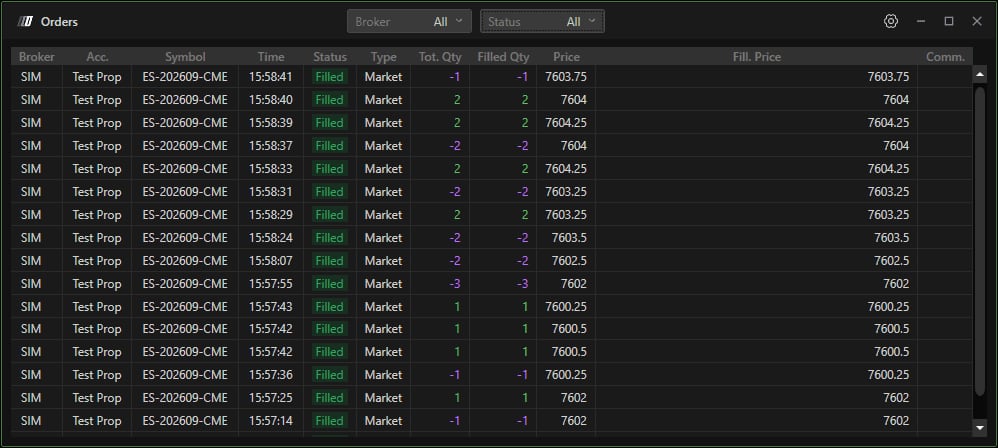
The DeepCharts Orders window lists every order sent from the platform: broker, account, symbol, time, status, type, quantities and fill price. All it needs is a connected trading account. This tutorial shows how to open it, read each column, filter by broker and status, and use it at the end of the session to spot an order that is still working.
- A trading account connected in DeepCharts (SIM, prop firm or live account)
Step by step
- 01
Open the window from the Trading menu
In the DeepChart menu bar, click Trading then Show Orders. The Orders window opens on its own: you can park it on a second monitor and keep an eye on your orders without covering the chart. The same menu leads to Strategy Report, Show Portfolio and Trade Copier.
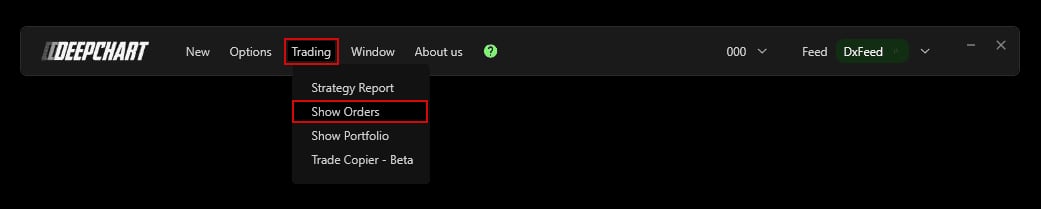
The DeepChart Trading menu open, with the Show Orders entry highlighted.© DeepCharts - 02
Read the columns
Each row is one order. Broker and Acc. tell you where it went, Symbol and Time which contract and when. Status gives its state (Filled for an executed order), Type its kind (Market, Limit, Stop…). Tot. Qty and Filled Qty compare the quantity requested with the quantity actually filled, positive for buys and negative for sells: a gap between them means a partial fill. Price and Fill. Price compare the order price with the price you got, which shows the slippage on a market order. Comm. shows the commission.
- 03
Filter by Broker and Status
At the top of the window, the Broker list isolates one broker when several are connected, say the SIM account and a prop firm account. The Status list filters by order state: the help center mentions placed, executed and cancelled orders, and All brings everything back. After a busy ES or NQ session, filtering on cancelled orders helps you find what was pulled, including OCO exits cancelled automatically when the other exit filled.
- 04
Check for working orders at the end of the session
Before closing the platform, set Status to Submitted. Only orders that were sent but neither filled nor cancelled remain, the ones that could still execute without you. An empty list means nothing is left behind. It matters even more if you run OCO on the Client side: if the platform closes, the one cancels the other logic stops, and an orphan stop or target can stay at the broker.
Settings, tab by tab
Isolates the orders of one connected broker.
Submitted keeps only working orders; the help center also mentions placed, executed and cancelled orders.
Broker and account that carried the order.
Full expiry, for example ES-202609-CME.
Time of the order.
Filled for an executed order.
Market on the screenshot.
Positive for buys, negative for sells. A gap means a partial fill.
Order price and actual fill price.
Commission of the order, empty on the screenshot.
⚠ Traps to avoid
- Closing DeepCharts without checking Submitted orders. A forgotten limit order can fill at the next open, and on a prop firm that is an unwanted position and sometimes a broken rule.
- Reading a filtered window without noticing. If an order seems to be missing, first check that Broker and Status are both on All.
- Mixing up Price and Fill. Price. On a market order, Fill. Price is what tells you where you actually got in.
FAQ
How do I open the order list in DeepCharts?+
DeepChart's Trading menu, then Show Orders. The Orders window opens separately from the chart.
How do I make sure no order is still working?+
Set the Status filter to Submitted: only orders sent but neither filled nor cancelled stay on screen. An empty list means nothing is pending.
How is it different from the Portfolio?+
The Orders window tells the story order by order. The Portfolio sums up, per symbol, the day's P/L and the open position of the selected account.
Want to get better at order flow?
We discuss flow, liquidity and our trades live, every day, on the OrderFlowFutures Discord. Join us, it's free.
Join the Discord for free9 online·82 members·Free · instant access