Published
An OCO strategy attaches two exits to your entry order, a limit order for the target and a stop order for protection: as soon as one fills, DeepCharts cancels the other. Everything is set in the Trading panel, under OCO Strategy. This tutorial covers SL/TP mode, Multi mode for scaling out, the Server or Client choice, and quick OCO creation from an open position.
- A trading account connected in DeepCharts (the SIM account is enough to practice)
- The Trading panel shown to the right of the chart (Trading panel switch at the bottom of the window)
Step by step
- 01
Turn on OCO Strategy in the Trading panel
Below the buy and sell buttons of the Trading panel, switch on OCO Strategy, then pick a mode in the Mode list: SL/TP or Multi. From then on, every entry sent from the panel goes out with its exits attached. Check the Broker and Account shown just above first: the strategy applies to the selected account, and on a prop firm you do not want to find out afterwards that you were on the wrong one.
- 02
SL/TP mode: one fixed stop and one fixed target
SL/TP mode places a single Stop Loss and a single Target Price. For each, choose the unit (Ticks or Money) and the distance, then tick the SL or TP box to arm it: an unticked exit is simply not sent. Both orders appear on the chart as soon as the entry fills, with their dollar amount. Think in the instrument's ticks: 40 ticks on NQ is not the same risk as 40 ticks on MNQ, where a tick is worth ten times less. This is the mode for exiting in one block.
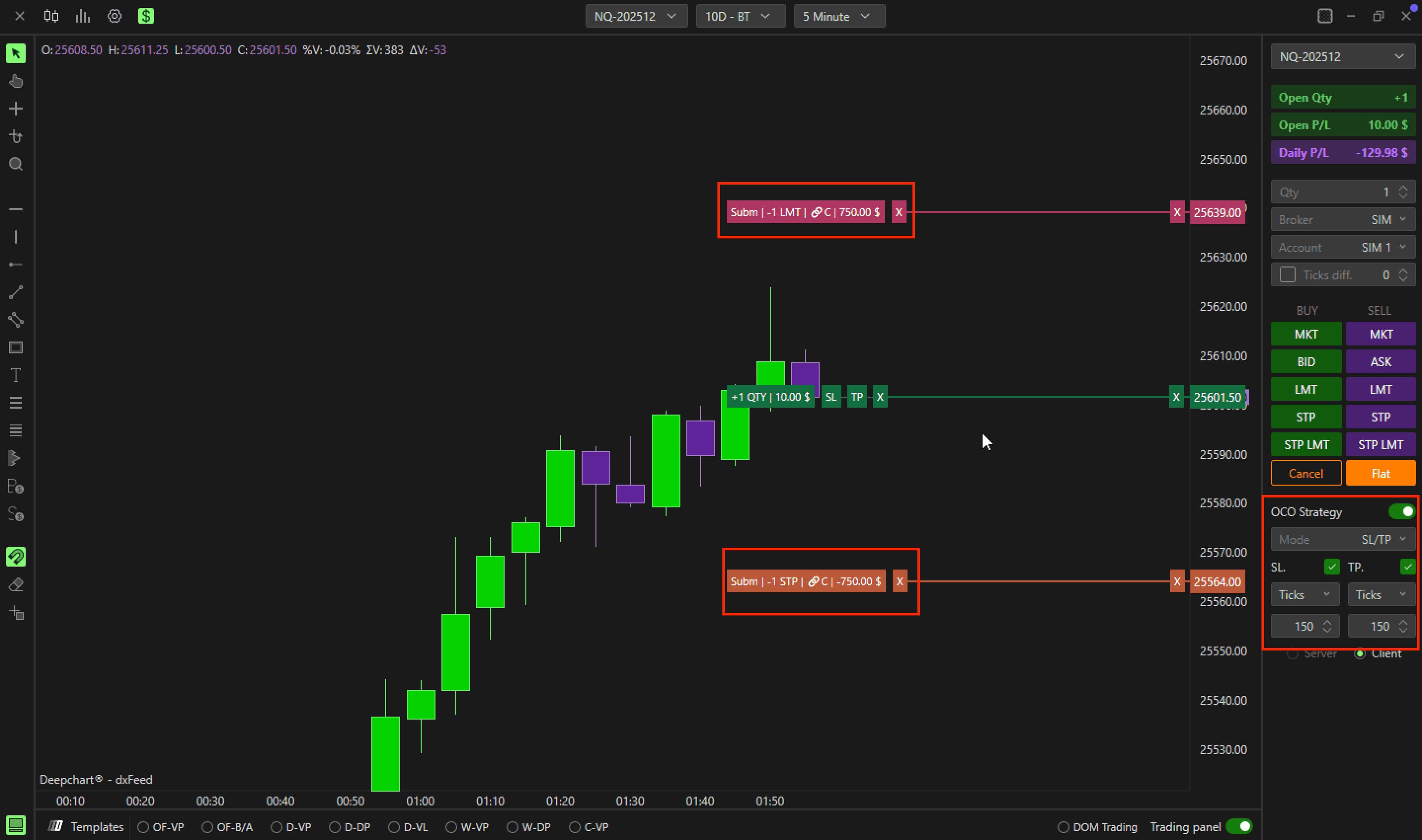
The OCO Strategy block in SL/TP mode with the SL and TP boxes ticked, the Ticks unit and both linked orders on the NQ chart.© DeepCharts - 03
Multi mode: build a strategy with several exits
Set Mode to Multi, click the gear icon next to the strategy list and choose New strategy. For each exit, select Type Stop or Target, the Ticks or Money unit, the quantity (Size) and the distance (Value), then click Add bracket. Repeat for every stop and target. On a target, the Move BE option pulls the stop up to the entry price (breakeven) once that target is hit. Give the strategy a clear name and click Save. The help center example: three contracts, one stop at 12 ticks, three targets at 8, 12 and 20 ticks, stop to breakeven after the second target.
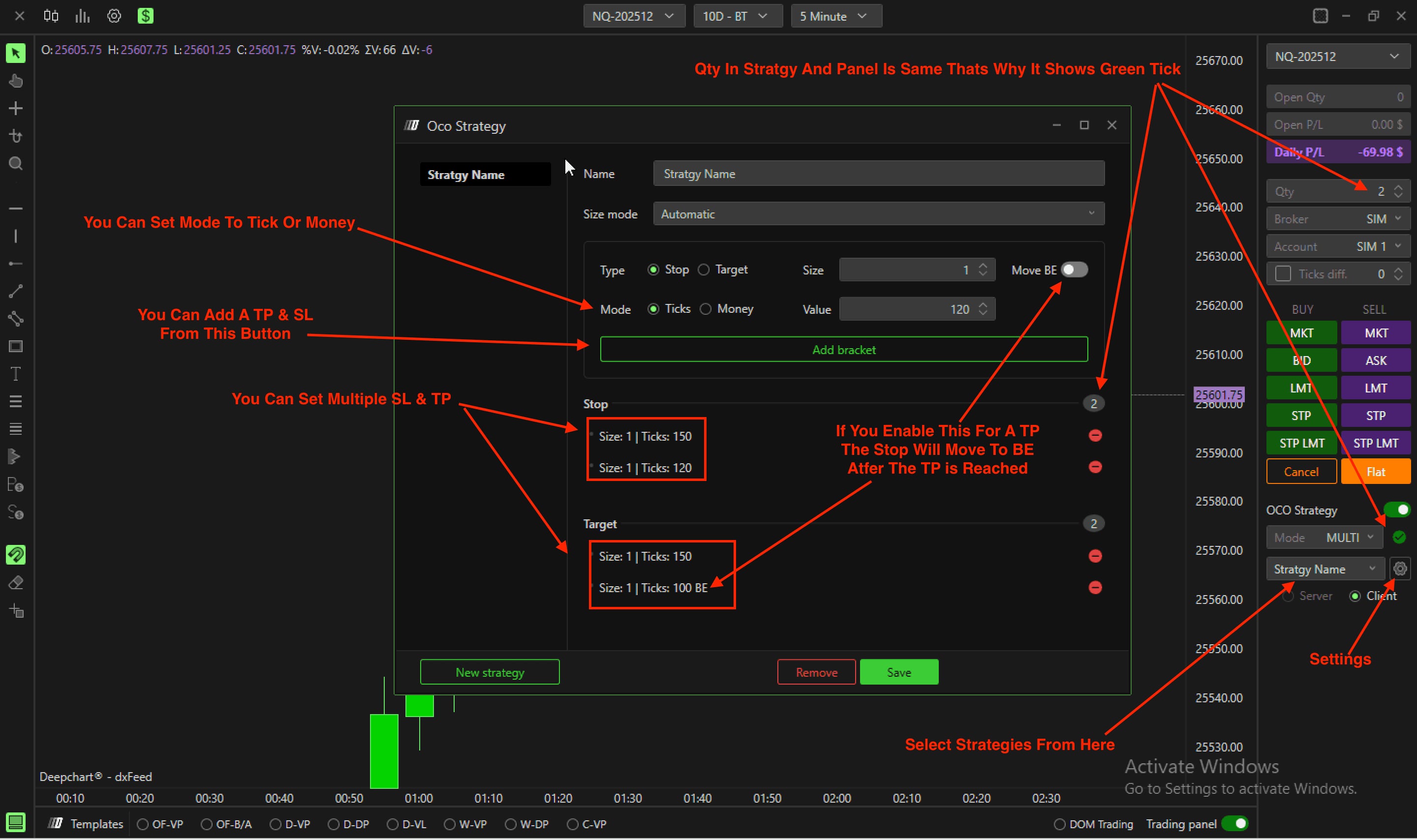
The Oco Strategy window with two stops, two targets including one flagged BE, the Add bracket button and the Move BE option.© DeepCharts - 04
Select the strategy and check the quantity
Pick your strategy in the panel's dropdown. A green tick shows when the quantity entered in Qty matches the strategy's total; otherwise a red warning appears. Do not ignore it: a strategy built for three contracts sent with a Qty of two cannot split its exits as planned. Adjust Qty, or prepare one strategy per position size you actually trade.
- 05
Choose Server or Client
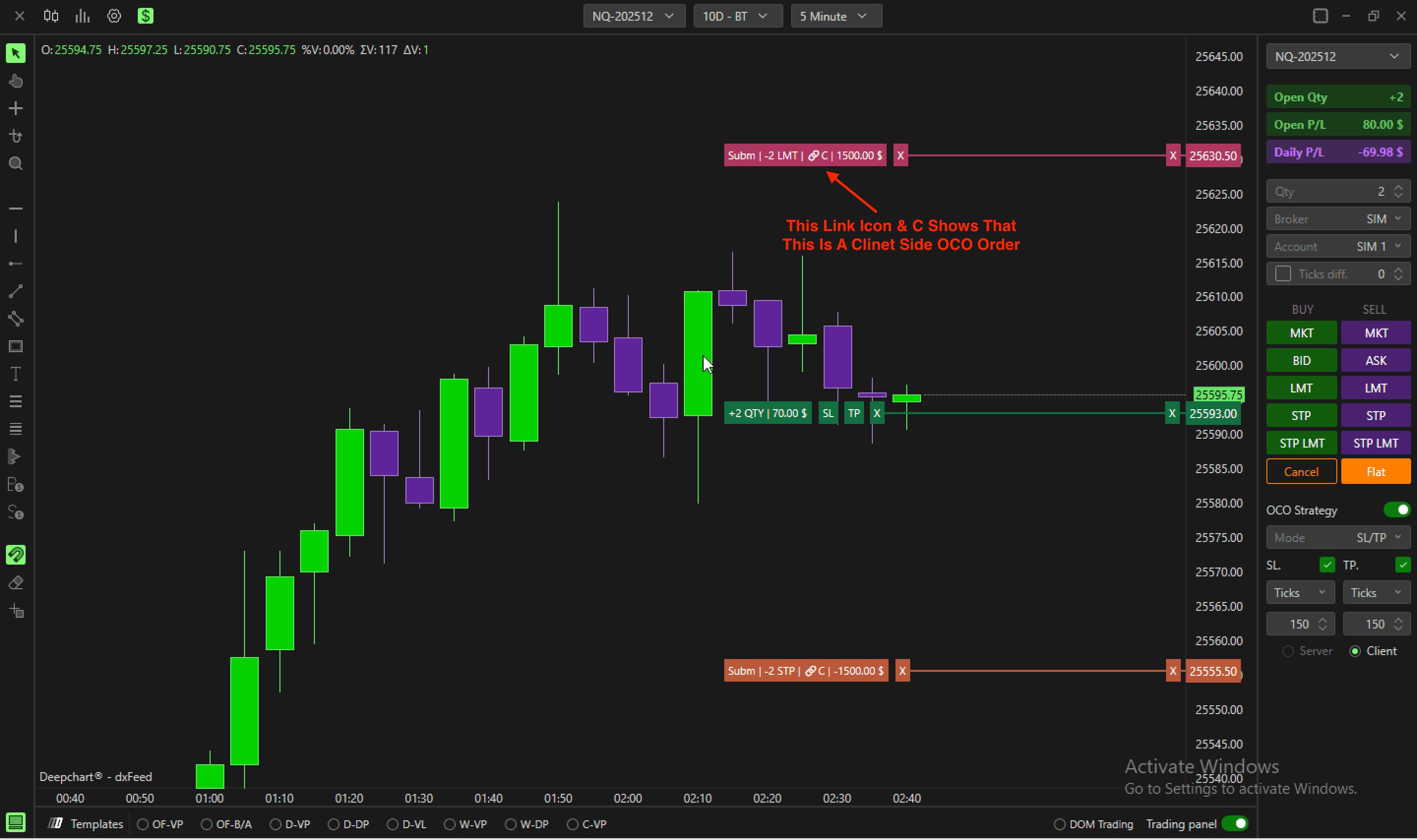
Below the OCO block, Server hands order management to the broker's server: the orders stay live even if your computer crashes or drops its connection. This mode currently works with Rithmic and dxFeed, and it also lets you link two OCO strategies together through Link pending orders, once the orders are entered. Client manages the orders locally, on your PC: the platform and your internet connection must stay up, otherwise the one cancels the other logic no longer runs. On the chart, a link icon followed by the letter C marks a client side OCO (visible on the opening screenshot).
- 06
Create a quick OCO from an open position
Even with OCO Strategy off, every open position shows two squares, SL and TP, next to its quantity label on the chart. Left click SL or TP to create the matching exit order, place it where you want, and link the two to get an OCO. It is the fallback when an entry went out unprotected, for instance a market order fired in a hurry.
Settings, tab by tab
Sends the exits automatically with every entry placed from the panel.
SL/TP: one stop and one target. Multi: a saved strategy with several exits.
SL/TP mode: arms or disarms each exit separately.
Distance expressed in ticks or as an amount.
Distance of each exit from the entry price.
Server: orders handled by the broker (Rithmic, dxFeed). Client: handled by your PC, which must stay connected.
Name shown in the panel's dropdown.
The help center does not describe the other choices of this field.
Kind of exit being added.
Unit of the exit's distance.
Number of contracts covered by this exit.
Distance of the exit, in the chosen unit.
On a Target: the stop moves to breakeven when this target is reached.
Add bracket adds the exit to the list, Save stores the strategy. New strategy and Remove manage the strategy list.
⚠ Traps to avoid
- Leaving the red warning in Multi mode. It means the Qty entered does not match the strategy's total: the exits will not be split the way you planned.
- Relying on Client mode over a shaky connection. In Client mode your PC cancels the remaining order: if DeepCharts closes or the internet drops, a filled exit can leave the other order working. With Rithmic or dxFeed, prefer Server.
- Copying distances designed for NQ onto MNQ, or the other way round, without accounting for tick value. In Money mode, check the amount shown on the order label before you commit.
- Forgetting that OCO Strategy only covers entries placed from the Trading panel. For a position already open without exits, use the SL and TP squares on the chart.
FAQ
What is the difference between SL/TP mode and Multi mode?+
SL/TP sends one stop and one target, set directly in the panel. Multi uses a saved strategy that can hold several stops and targets with different quantities, and can move the stop to breakeven after a target.
Do my OCO orders stay active if my PC shuts down?+
Only in Server mode, where the broker manages the orders. That mode currently works with Rithmic and dxFeed. In Client mode, the platform and the connection must stay up.
How can I tell an OCO is handled client side?+
On the chart, the order label shows a link icon followed by the letter C.
Can I add a stop and a target to a position that is already open?+
Yes: click the SL and TP squares shown next to the position on the chart, then link the two orders to form an OCO.
Want to get better at order flow?
We discuss flow, liquidity and our trades live, every day, on the OrderFlowFutures Discord. Join us, it's free.
Join the Discord for free9 online·82 members·Free · instant access