Updated · first published
DeepCharts is a Windows desktop application, not a web platform: there is no browser version, and your machine does part of the order book number crunching. The install itself takes five minutes, but three things trip up new users again and again: what the hardware really needs to be, the Windows display language, and the fact that your licence key and your data feed credentials are two completely different things. This guide covers the whole path, from getting the licence to your first simulated order.
- A Windows 10 or 11 PC (Windows 7 is the stated minimum, but the platform is built for Windows 10)
- On a Mac: Parallels Desktop and a Windows virtual machine, the setup our community uses
- An account on my.deepcharts.com with an active licence (your licence key lives there)
- Microsoft .NET Framework 4.8 or later, and up to date Visual C++ Redistributables
- A data feed subscription, with its own username and password (separate from your DeepCharts account)
Step by step
- 01
Check the machine can keep up
System requirements are not a formality here: the order book and the order flow indicators recompute continuously. Stated minimum: Intel i5 or 2.5 GHz AMD, 8 GB of RAM, 20 Mbps ADSL, Windows 7. Recommended, and what to aim for once you run several instruments at once: Intel i7 or 3 GHz AMD, 16 GB of RAM, 50 Mbps fiber, Windows 10, a 256 GB SSD. The SSD matters as much as the CPU, the platform writes to disk constantly.
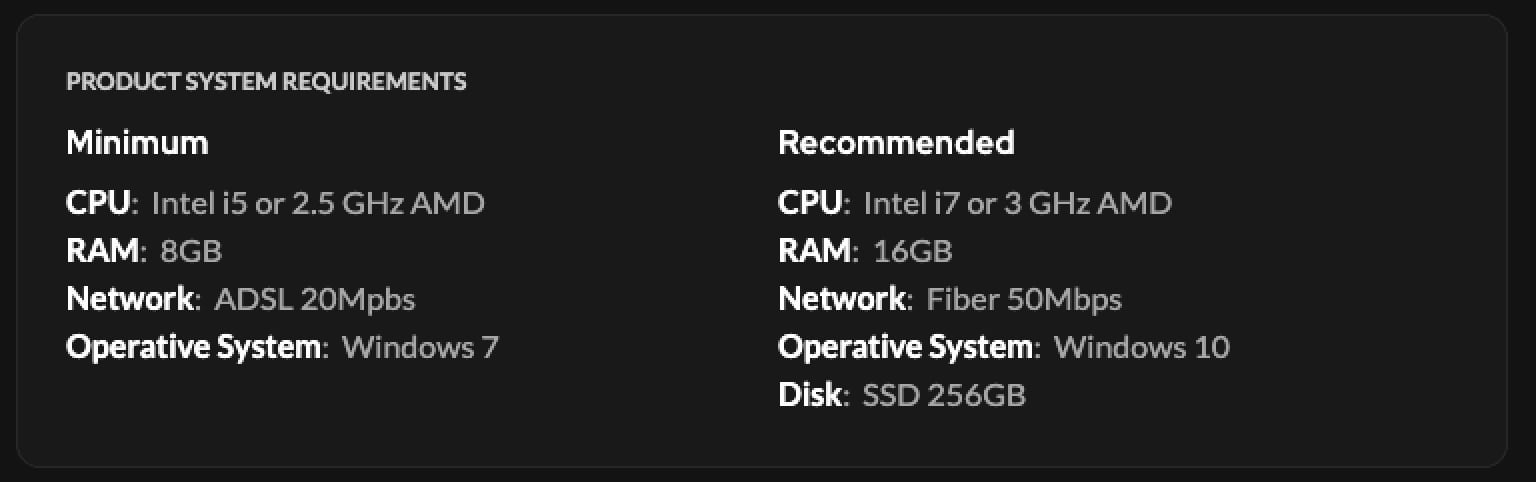
The DeepCharts system requirements table, Minimum and Recommended columns.© DeepCharts - 02
Get the licence with code OFF, pre-filled by our link
The licence key asked for on first launch comes from your subscription, taken on my.deepcharts.com. Open DeepCharts through the OrderFlowFutures link: code OFF then comes pre-filled in the promo code field at the Payment step, step 3 of the DeepCharts checkout (without the link, type it into that field yourself). It takes an extra 10% off every plan, monthly or yearly, on top of any discount running. Checkout runs in three steps: Account (email, password, country), Billing Details, then Payment, where all you do is check that OFF is there. Check the machine before paying rather than after: the platform runs on Windows only.
- 03
Switch Windows to English
Counter intuitive, and the single most common reason installs fail: the DeepCharts installer expects an English system. On a non English Windows it stops on a Setup Failed message. Control Panel, Region and language, set English as the display language, reboot, install. You can switch the system language back once the install is done.
- 04
Download the installer from the portal
The download only happens from my.deepcharts.com once you are logged in: there is no public link. What you get is an archive named DeepchartsInstaller.zip. Be wary of any other site offering a DeepCharts installer, none exist.
- 05
Extract the archive
Right click DeepchartsInstaller.zip, Extract All. Running the executable from inside the zip without extracting fails about half the time: the installer needs the files sitting next to it.
- 06
Turn the antivirus off for a moment
Third party antivirus software regularly quarantines the installer or one of its components, and does not always say so clearly. Turn it off for the install, then turn it back on and add DeepCharts as an exception. Windows Defender on its own causes no trouble and can stay enabled.
- 07
Run DeepchartsInstaller.exe
Double click the extracted executable, accept the terms, then Install. While you are at it, check there is free space on the C: drive, the installer writes there even when the destination folder is elsewhere. Reboot if the installer asks, which happens when it had to lay down a system component.
- 08
Open DeepCharts
A shortcut is created on the Desktop. On first launch the platform asks you to activate the licence before showing anything else.
- 09
Enter your email and licence key
Two fields: the email address of your DeepCharts account, and the licence key, an alphanumeric string available in your client area on my.deepcharts.com. It is the key that goes here, not your account password. The platform validates it online, activation takes a few seconds.
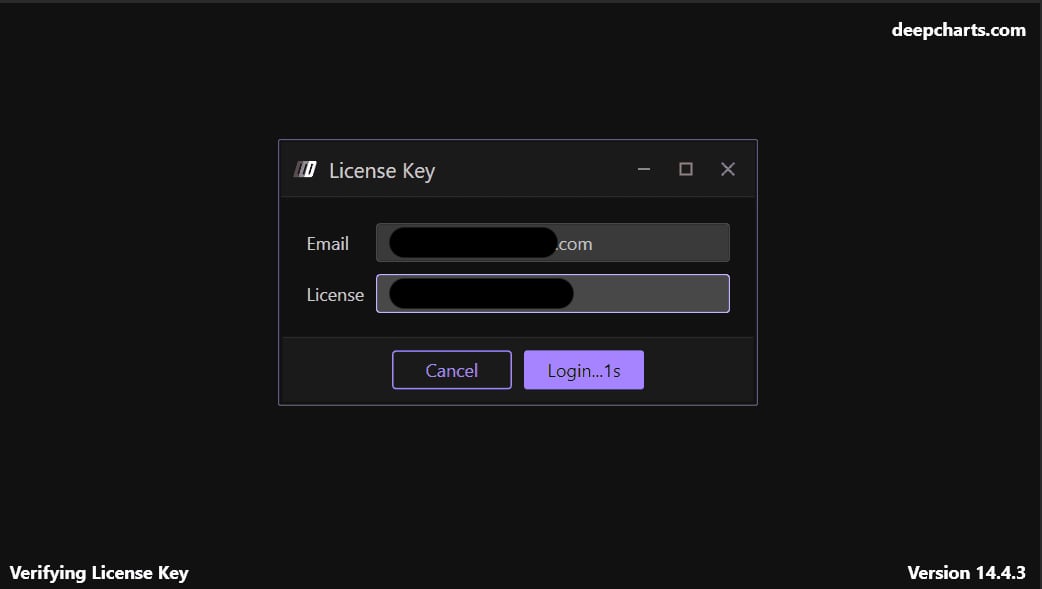
The License Key window with the Email and License fields and the Login button.© DeepCharts - 10
Open the feed settings
Once the licence is validated, the top menu bar shows a Feed selector, with a Select a connection entry and, below it, Feed Settings. That is the single entry point for declaring a data feed.

The DeepChart menu bar, Feed menu open on the Feed Settings entry.© DeepCharts - 11
Create the first connection
Add Connection, then four fields: Name (free text, to tell profiles apart if you run several feeds), Feed Source (the provider you subscribed to, dxFeed for instance), and under LOGIN INFO the Username, Password and Server. These credentials belong to the data feed, not to your DeepCharts account: mixing the two is the most common mistake at this step.
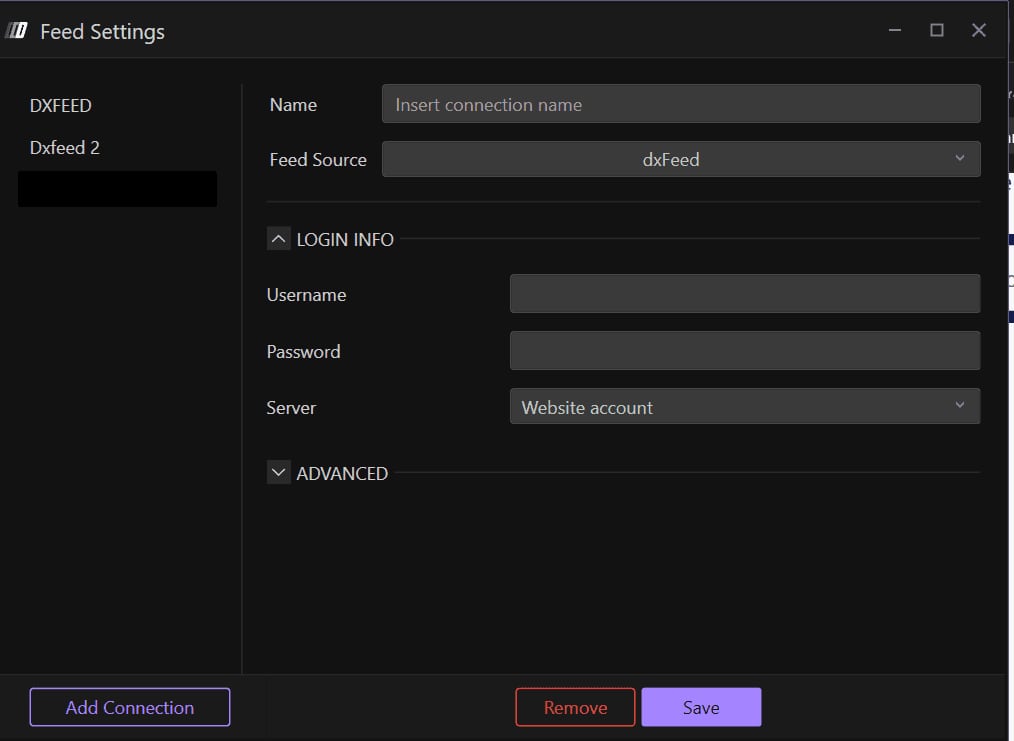
The Feed Settings window with Name, Feed Source, Username, Password and Server.© DeepCharts - 12
Save and wait for the green light
Save, and the connection goes live. A visual indicator confirms the feed status. If it fails, check the Server first: an otherwise correct profile will not connect if the server does not match the one supplied with your feed access.
- 13
Create a simulation account
Options, Settings, Sim Account tab, Add button. Two fields: a name (SIM 1 does the job) and a starting balance, 10,000 by default. Put in the real balance of the account you are preparing rather than a round number: risk management does not test properly on a fictional account twice the size. Save Settings.
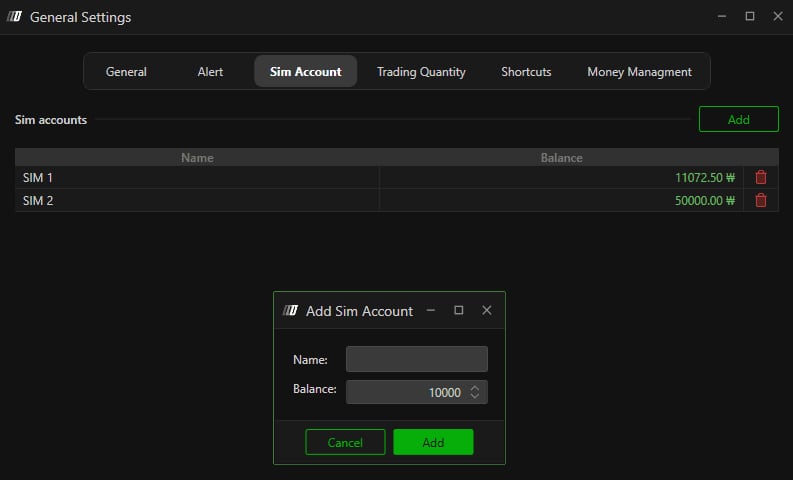
The Sim Account tab of General Settings, with the Add Sim Account window, Name and Balance fields.© DeepCharts - 14
Open a chart and place a simulated order
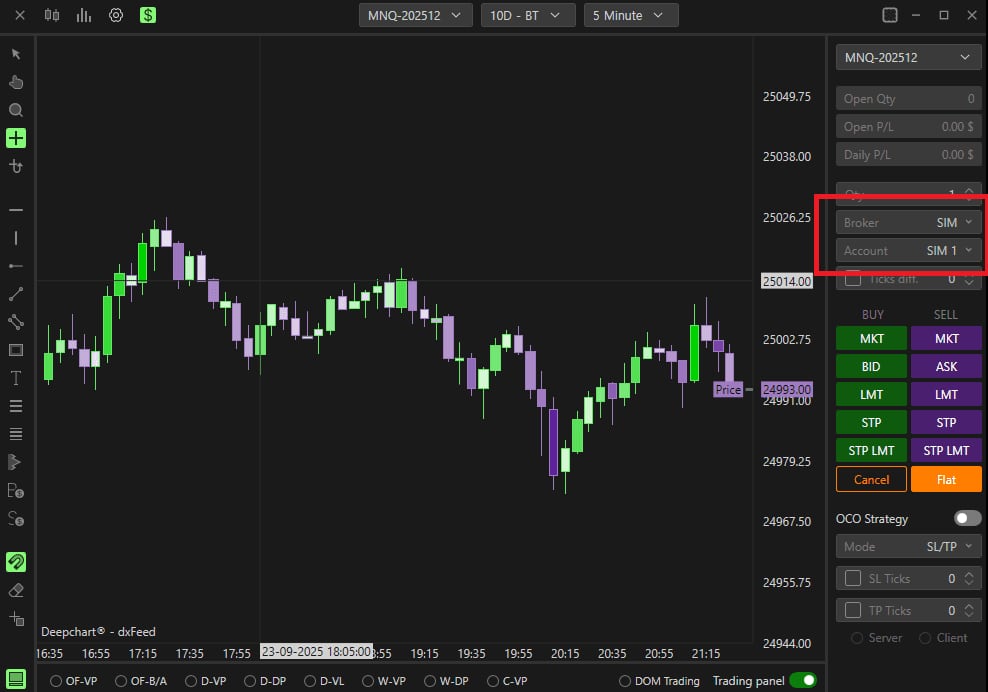
New Chart, pick an instrument from the exchange attached to your feed, MNQ for example. In the trading panel on the right, set Broker to SIM and Account to the one you just created. The BUY and SELL buttons now send simulated orders. If the chart stays empty while the feed is connected, what is missing is the exchange to feed profile attachment, not the connection.
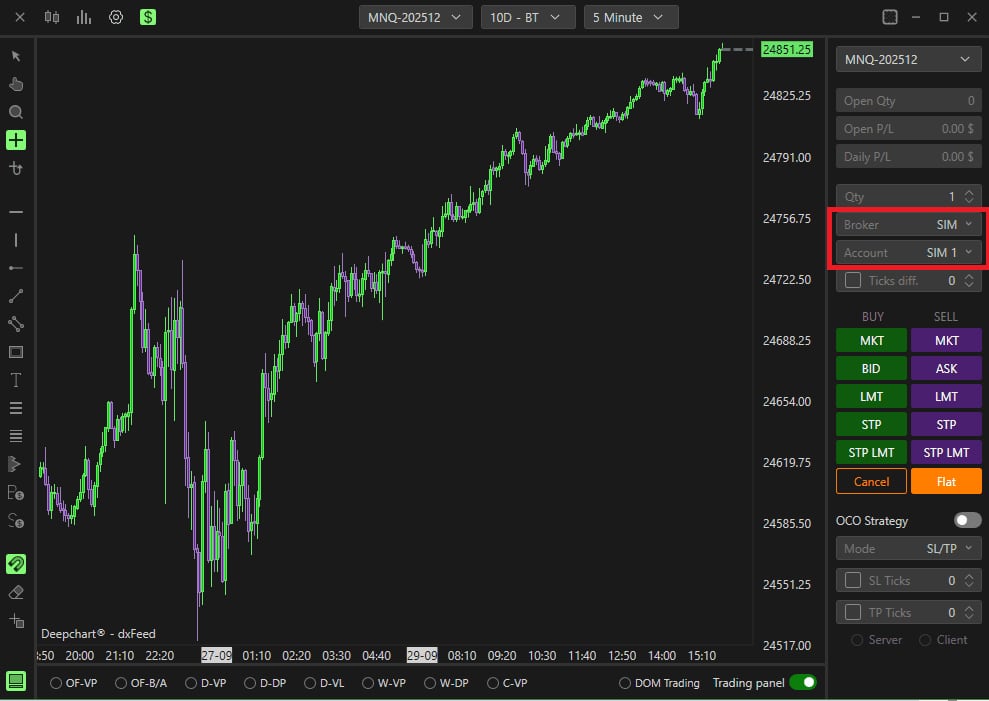
A live MNQ chart with the trading panel on the right, Broker SIM and Account SIM 1.© DeepCharts
Settings, tab by tab
The official numbers, written out rather than buried in an image. Aim for the recommended column as soon as several order flow charts run side by side.
Recommended: Intel i7 or 3 GHz AMD.
Recommended: 16 GB.
Recommended: 50 Mbps fiber. Latency matters as much as bandwidth.
Recommended: Windows 10. Windows only, no native macOS build.
Keep free space on C:, the installer writes there.
Plus up to date Visual C++ Redistributables.
Found in the my.deepcharts.com client area. It is not your account password.
Tells profiles apart when several feeds coexist.
The provider you subscribed to, dxFeed for instance.
Issued by the data provider, not by DeepCharts.
Separate from your DeepCharts account password.
Must match exactly the server supplied with your feed access. First thing to check when a connection fails.
SIM 1, SIM 2, or the name of the prop firm you are preparing for.
Better to enter the real balance of the account you are targeting, so risk management is representative.
Select it on the chart so orders are routed to simulation.
⚠ Traps to avoid
- Installing on a non English Windows. The installer expects an English system and stops on Setup Failed, often with code 0x80070643. It is reason number one, and it has nothing to do with your hardware. Switch the display language, install, then switch back.
- Skipping the Visual C++ Redistributables. Reason number two: a missing or outdated package. Install the current x86 and x64 versions from Microsoft before running the installer again.
- Running the executable from inside the zip. The installer needs the files that ship alongside it: extract first, run second.
- Mixing up the licence key and the account password, then the data feed credentials and the DeepCharts account ones. Three different secrets come into play in the first ten minutes, and none of them are interchangeable.
- Looking for a Mac build. There is none, and no web version either. On a Mac the platform runs inside a Windows virtual machine under Parallels Desktop, with the same RAM and CPU expectations as a PC, applied to the virtual machine.
FAQ
Does DeepCharts work on Mac?+
Not natively: it is a Windows application, there is no macOS build and no browser version. On a Mac it runs inside a Windows virtual machine through Parallels Desktop, which is the setup our community uses. Give the virtual machine at least 8 GB of RAM, 16 if you run several charts, otherwise the order book falls behind during volume spikes.
Where do I download DeepCharts?+
Only from my.deepcharts.com, once logged into your account. The file is called DeepchartsInstaller.zip. No other site distributes the official installer.
Is there a DeepCharts promo code for the licence?+
DeepCharts promo code: OFF. It takes an extra 10% off every plan, monthly or yearly, on top of any discount running, on DeepChart, DeepDom, DeepGamma Web and the Deep Trader Program. Through the OrderFlowFutures partner link it is already filled in at the Payment step; otherwise enter it in the promo code field at the Payment step, step 3 of the DeepCharts checkout.
What should I do when the DeepCharts setup fails?+
Three causes cover almost every case, in this order: a Windows system language that is not English, missing or outdated Visual C++ Redistributables, and a SlimDX / DirectX graphics component issue. Deal with the first two first, they account for the vast majority of failures.
Can I try DeepCharts without putting money at risk?+
Yes, with the built in simulation account: Options, Settings, Sim Account tab, Add. Orders placed with the SIM broker on a chart are simulated against the real feed data. It is the normal way to learn the platform and to check your machine holds up before trading live.
How long does the full installation take?+
Five to ten minutes for the installer itself, and roughly double that once you factor in the language switch, a possible reboot, licence activation and the first feed connection. On a machine already in English and up to date, fifteen minutes gets you to a live chart.
Is there a web or mobile version of DeepCharts?+
No. The platform is a Windows executable installed locally, which follows from what it does: part of the order book and order flow computation happens on your machine, tick by tick. There is no browser version and no mobile app.
Want to get better at order flow?
We discuss flow, liquidity and our trades live, every day, on the OrderFlowFutures Discord. Join us, it's free.
Join the Discord for free16 online·108 members·Free · instant access