Published
DeepCharts can display end of day historical data through a dedicated feed source called Historical. Setup takes two moves: create a feed profile with that source in Feed Settings, then assign it to an exchange in Symbol Manage. This tutorial walks through both, how to check the result on a chart, and the trap of overwriting the exchange assignment of your real time feed.
- DeepChart installed and running
- Knowing which exchange lists the instruments you want to see in historical data
Step by step
- 01
Open Feed Settings
In the DeepChart menu bar, click the Feed selector (it reads Select a connection when no feed is active). The list shows existing profiles, with Feed Settings at the bottom. It is the same entry point as for a real time feed: a historical data profile is just another feed profile.
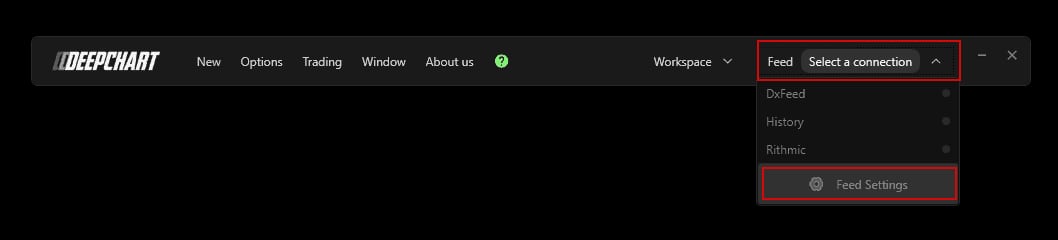
The Feed selector open with existing profiles and the Feed Settings entry highlighted.© DeepCharts - 02
Create a profile with the Historical source
Click Add Connection. Give the profile any name in Name (History in the screenshot): pick one that clearly sets it apart from your real time feed, since you will look for it in Symbol Manage. In Feed Source, scroll down the list and select Historical. Click Save, then close Feed Settings.
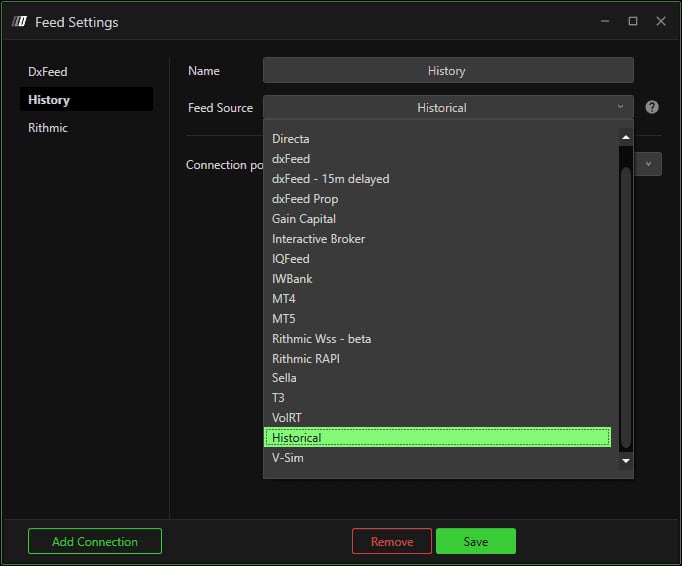
Feed Settings with a History profile and Historical selected as Feed Source.© DeepCharts - 03
Open Symbol Manage
A new profile does nothing until an exchange uses it. Open the DeepChart Options menu, then Symbol Manage: this is the table that says, exchange by exchange, which feed profile drives the charts.
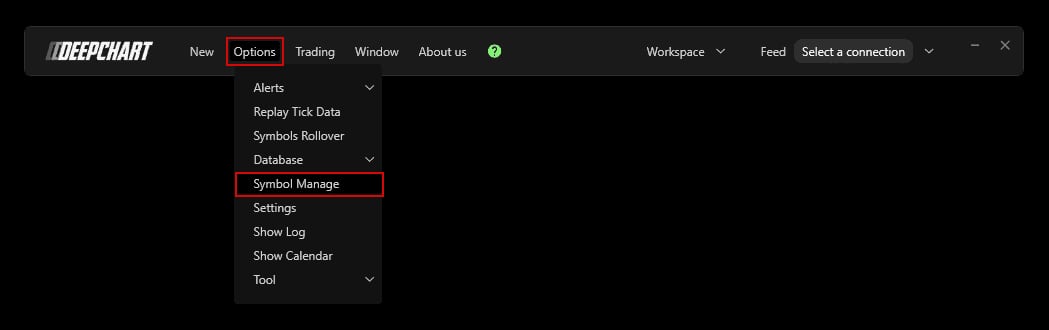
The DeepChart Options menu with the Symbol Manage entry highlighted.© DeepCharts - 04
Assign the exchange to the historical profile
Find the exchange in the Exchange column, right click its Data Feed cell and pick the profile created in step 2. In the screenshot, the FTSE exchanges are switched to the End of day profile while CME and CBOT stay on dxFeed. If the exchange is not listed, add it with the Add button, then assign the profile.
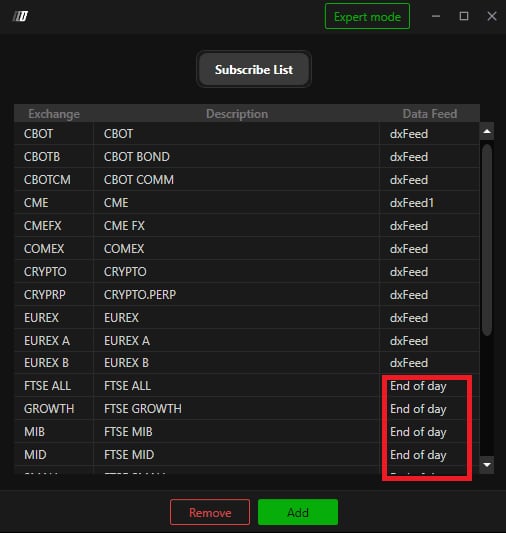
Symbol Manage with the Exchange, Description and Data Feed columns, FTSE exchanges set to End of day.© DeepCharts - 05
Check on a new chart
Open a new chart on an instrument from the assigned exchange: the historical data should load. If the chart stays empty, first recheck the exchange's Data Feed cell in Symbol Manage, then confirm the profile was saved with the Historical source.
Settings, tab by tab
Lets you recognize the profile in Symbol Manage.
The source to select in the list for end of day data.
Add Connection creates the profile, Save stores it.
Add a missing exchange with the Add button.
Right click to pick the historical profile.
⚠ Traps to avoid
- Creating the Historical profile and stopping there. Without an assignment in the Symbol Manage Data Feed column, no exchange uses it and the chart stays empty.
- Switching the wrong exchange. Each exchange holds a single profile in the Data Feed column: move CME to the historical profile and your ES and NQ charts are no longer fed by your real time feed. Assign the historical profile to exchanges your main feed does not cover.
- Giving the profile a vague name. Symbol Manage only shows profile names: an explicit one such as History or End of day keeps the sources apart.
FAQ
Does end of day data replace a real time feed?+
No. It is historical data: to trade live and use order flow indicators on futures, you still need a real time feed connected on that exchange.
Do I need credentials for the Historical source?+
The help center only asks you to name the profile, choose Historical as Feed Source and save: no credentials are mentioned for this source.
Can I keep my real time feed and the historical profile side by side?+
Yes, profiles coexist in Feed Settings. The per exchange assignment in Symbol Manage decides which one feeds each chart.
Want to get better at order flow?
We discuss flow, liquidity and our trades live, every day, on the OrderFlowFutures Discord. Join us, it's free.
Join the Discord for free8 online·82 members·Free · instant access