Published
When your prop firm issues dxFeed credentials, DeepChart connects to them through the dxFeed Prop source. What sets it apart is the Dom Type field: MBO, the order by order book, or MBP, aggregated by price and lighter. So the key prerequisite is measuring your internet connection before you choose. This tutorial covers the diagnostic, the form, Symbol Manage, the chart and DeepDom.
- A purchased or funded prop firm account running on dxFeed
- The dxFeed credentials (username and password) from the prop firm's email or dashboard
- DeepChart installed with an active licence
- The general feed profile and exchange logic, covered in our tutorial "Connecting a data feed to DeepCharts"
Step by step
- 01
Get the dxFeed credentials from your prop firm
They come once you buy an evaluation or get funded: in the prop firm's email, or in your dashboard under platform credentials. You need a dxFeed Username and a dxFeed Password. They are not your DeepCharts account login, and not necessarily your prop firm portal login either.
- 02
Measure your line with the Diagnostic Report
Before creating the connection, click the ? icon in the DeepChart toolbar, Contact Support, then "I have a problem or delay with the platform". The Diagnostic window shows the version, operating system, CPU, memory, IPv4 and IPv6, and ping to Europe and the US. Click Click here to confirm to run the full Global, EU and US download speed test. No credentials are collected along the way.
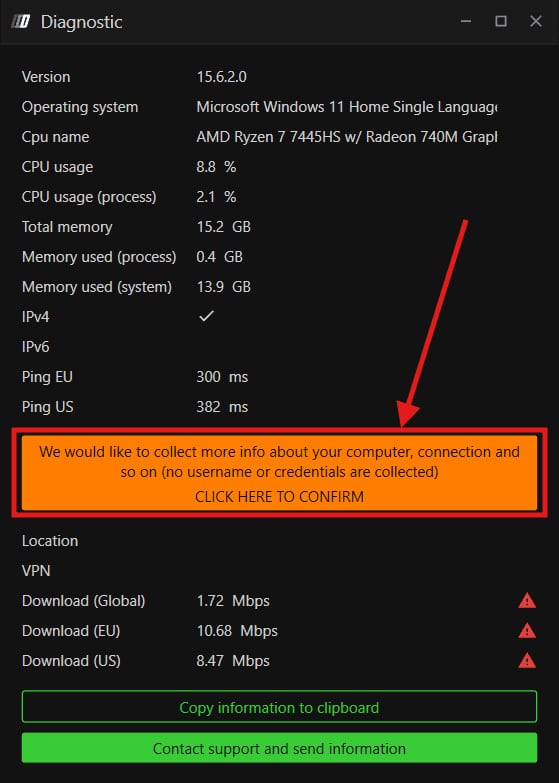
The DeepChart Diagnostic window with EU and US ping, the Click here to confirm banner and the measured download speeds.© DeepCharts - 03
Choose between MBO and MBP
MBO (Market By Order) sends every resting order individually: the finest depth there is, and also the heaviest feed, especially on NQ at the US open. MBP (Market By Price) aggregates orders per price level. DeepCharts' rule: fast and stable line, MBO; slower or patchy line, MBP. Red triangles next to the download speeds in the diagnostic are your cue to go with MBP.
- 04
Create the dxFeed Prop connection
Select a connection, Feed Settings, Add Connection. Feed Source set to dxFeed Prop (not one of the other dxFeed entries in the list), any Name you like, then under LOGIN INFO the Username and Password from your prop firm. The Dom Type field sits right below: pick Mbo or Mbp based on the previous step.
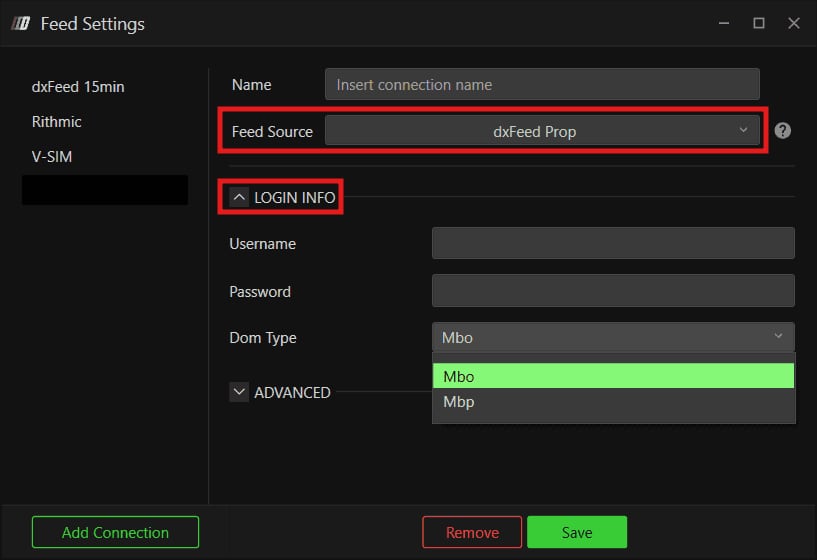
The Feed Settings window with Feed Source on dxFeed Prop and the Dom Type menu open on Mbo and Mbp.© DeepCharts - 05
Save, then connect
Save, then pick the dxFeed Prop connection from the Feed menu. The dot turns green. If data then lags on MBO, go back into Feed Settings, switch Dom Type to Mbp and reconnect: that is the fix DeepCharts prescribes.
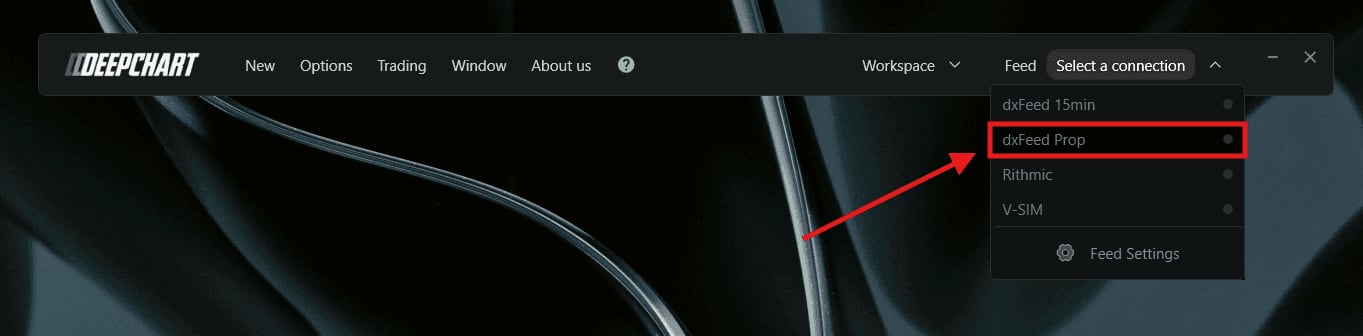
The DeepChart Feed menu with the dxFeed Prop connection highlighted.© DeepCharts - 06
Map the exchange in Symbol Manage
Options, Symbol Manage. Check that the exchange your contracts trade on (CME for ES, NQ, MES, MNQ) points to dxFeed Prop in the Data Feed column. If it is listed with another source, switch it to your dxFeed Prop connection (Change connection) and confirm with Set. If it is missing, Subscribe, find the exchange, choose dxFeed Prop and confirm with Select. Then close the window.
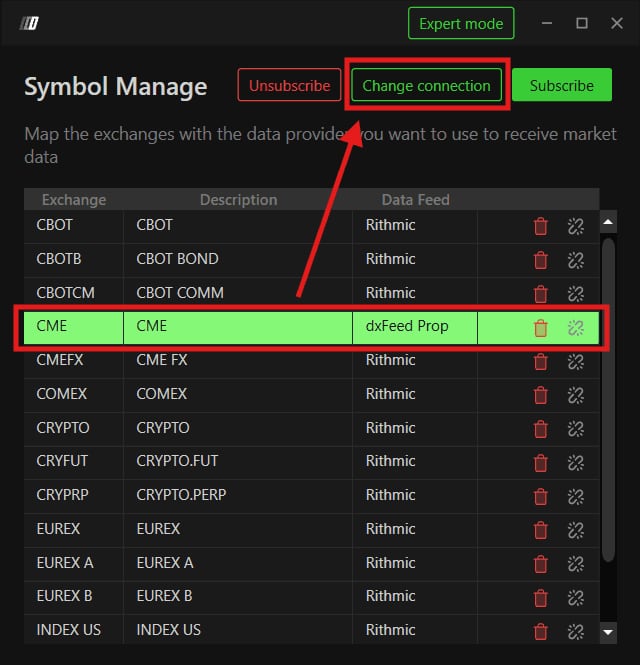
The DeepChart Symbol Manage window, CME row mapped to dxFeed Prop.© DeepCharts - 07
Open a chart
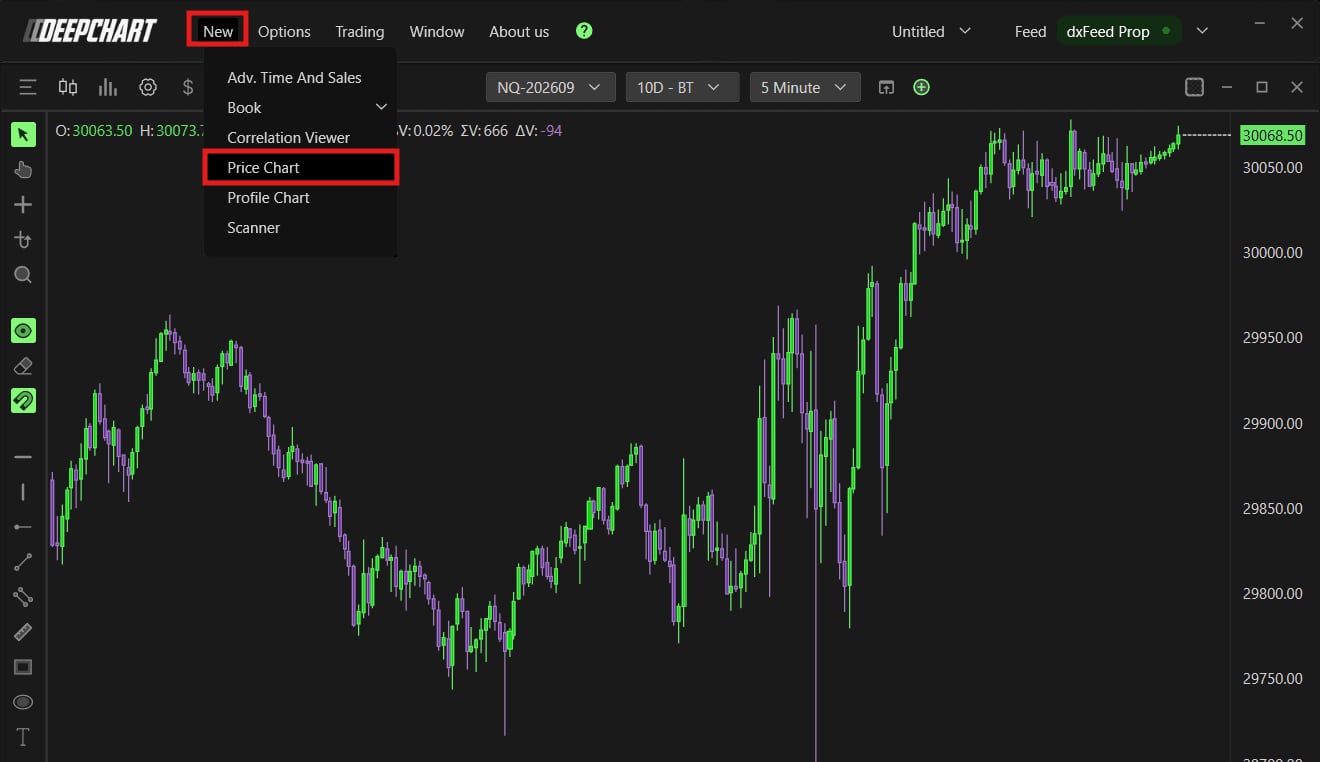
New, Price Chart, pick ES or NQ, then OK. The chart loads live and the Feed menu shows dxFeed Prop in green. A blank chart with a green light almost always points back to the previous step: the exchange is not mapped to the right connection.
- 08
Hook DeepDom up in MBO
The same dxFeed credentials work in DeepDom. In DeepDom, Feed Settings, Add Connection, dxFeed Prop, the same credentials, then Dom Type set to Mbo: DeepDom runs on Level 2 data and DeepCharts recommends MBO on both sides. Save, connect, and both platforms run side by side on the same feed without conflict.
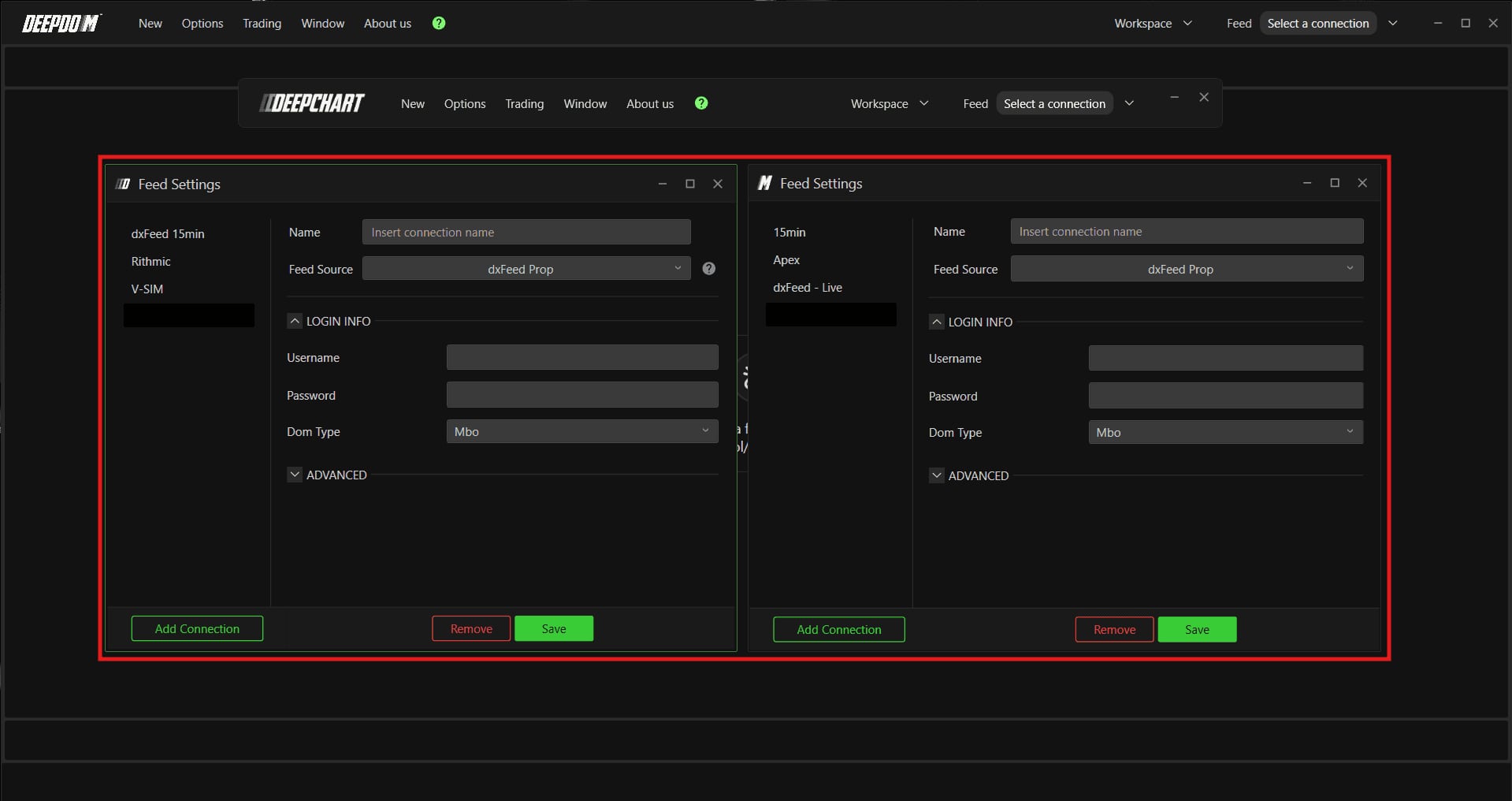
The DeepChart and DeepDom Feed Settings windows side by side, on dxFeed Prop with Dom Type Mbo.© DeepCharts
Settings, tab by tab
Reached through the ? icon, Contact Support, "I have a problem or delay with the platform".
Latency to each server region.
A red triangle flags a weak speed: lean towards MBP.
The diagnostic never reads your username or passwords.
The prop firm's name works well, so you can spot it in the Feed menu.
The source dedicated to prop firm accounts, separate from the other dxFeed entries.
Issued by the prop firm.
Issued by the prop firm.
Mbo: order by order book, finer and heavier. Mbp: aggregated by price, lighter.
The exchange of the contracts your prop firm allows.
Exchange already listed: Change connection, then Set.
Find the exchange, choose dxFeed Prop, then Select.
⚠ Traps to avoid
- Picking a dxFeed entry other than dxFeed Prop as Feed Source. The list holds several, and prop firm credentials only open on the dxFeed Prop source.
- Staying on MBO over a line that cannot keep up. The book falls behind right when it gets busy, US open and news releases. Switch to MBP and reconnect rather than trade off a lagging book.
- Skipping the diagnostic and choosing MBO on principle. Two minutes of testing tell you whether your line carries the heaviest feed, especially over Wi-Fi or behind a VPN.
- Leaving CME on another connection in Symbol Manage. The dxFeed Prop light is green, but the chart is fed from elsewhere, or not at all.
- Setting DeepDom to MBP. DeepCharts recommends MBO in both DeepChart and DeepDom: if your line cannot handle MBO, the line is what needs fixing before you rely on DeepDom.
FAQ
MBO or MBP: which one for trading NQ on a prop account?+
MBO if your diagnostic shows a fast, stable line: you get the finest, order by order depth. MBP if speeds are low or patchy: the feed is lighter and the book keeps up better when things get busy. You can switch at any time in Feed Settings, then reconnect.
Does the diagnostic report send my credentials to DeepCharts?+
No. The window says so itself: what it collects is about the machine and the connection (version, OS, CPU, memory, ping, speeds), never a username or any credentials.
Can I use the same dxFeed credentials in DeepChart and DeepDom?+
Yes. Create a dxFeed Prop connection in each platform with the same credentials and Dom Type set to Mbo on both. They run at the same time on the same feed without conflict.
My data started lagging after I connected dxFeed Prop, what now?+
If you are on MBO, switch Dom Type to Mbp in Feed Settings and reconnect: that is the first thing to try. Then rerun the Diagnostic Report to check ping and speeds, and send it to support if the lag persists.
Want to get better at order flow?
We discuss flow, liquidity and our trades live, every day, on the OrderFlowFutures Discord. Join us, it's free.
Join the Discord for free8 online·82 members·Free · instant access