Published
When a DeepCharts chart stays frozen, shows gaps or wrong prices while the feed is connected, that symbol's local history is often damaged. The Delete Data window erases it over the period you choose so the platform downloads clean data again. The feed must be disconnected and every workspace closed. This tutorial covers the built-in method, the manual fallback through the symbol folder, and what comes back afterwards.
- The exact name of the affected symbol as DeepCharts shows it (NQ-CME, for instance)
- Roughly the day the problem started, to pick the start date
- No open position to watch: the feed stays disconnected throughout
Step by step
- 01
Make sure it really is one symbol's data
Targeted deletion answers four specific symptoms: the chart stops updating, gaps or wrong prices appear, the feed is connected but the chart is frozen, or minor corruption is limited to one instrument. If the whole platform is sluggish, or every symbol is affected, the fix lies elsewhere: follow the "Maintaining and repairing the DeepCharts database" tutorial. And if the chart is empty from the moment it opens, check the subscription and how the market is assigned to the feed first.
- 02
Disconnect the feed, close workspaces, open Delete Data
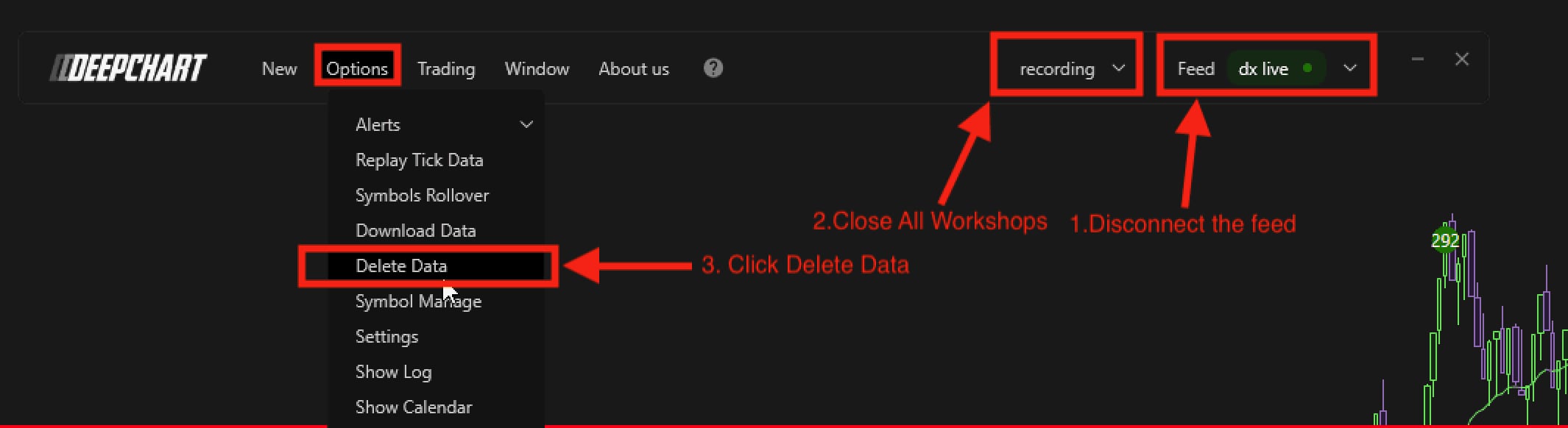
In this order: disconnect the feed from the Feed menu at the top right, close every chart and workspace from the workspace menu right next to it, then open Options > Delete Data. On recent versions the command lives in the Options > Database submenu. Deleting with the feed connected means DeepCharts keeps writing to the very files you are trying to erase.
- 03
Pick the symbol with Select Symbols
The Delete data window opens with no symbol selected. Click Select Symbols at the bottom left and tick only the affected instrument, NQ-CME for instance. If your MNQ and NQ both show the same defect, select both; otherwise leave the history of a working instrument alone.
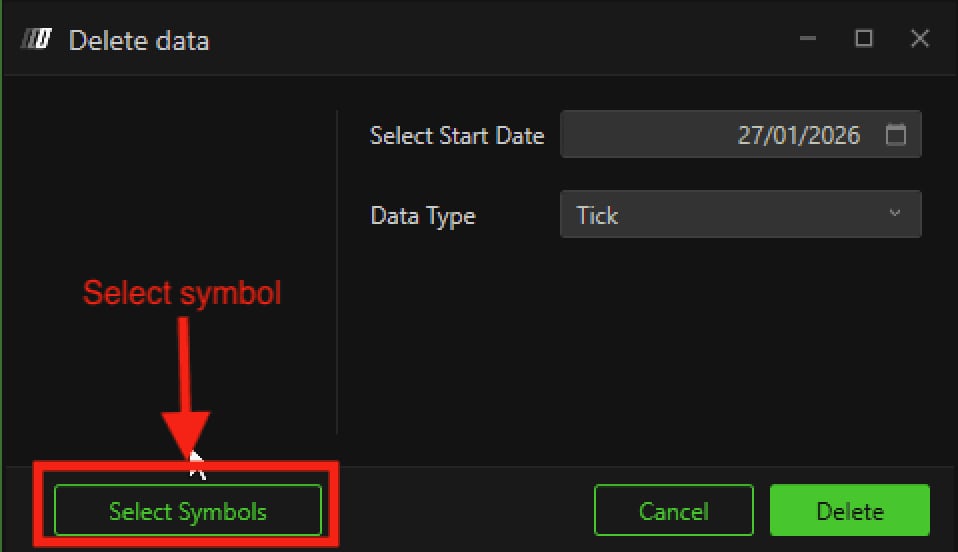
The Delete data window with Select Start Date, Data Type and the Select Symbols button highlighted.© DeepCharts - 04
Set Select Start Date and Data Type
Select Start Date sets the day from which history is erased. For a chart that froze recently, DeepCharts suggests two to three days before today. For corrupted history, the database problems article advises going back before the error started, fifteen days or more. Data Type picks which data gets erased: Tick on the screenshot, and the corruption article recommends clearing both Tick and Minute. The selected symbol shows on the left of the window.
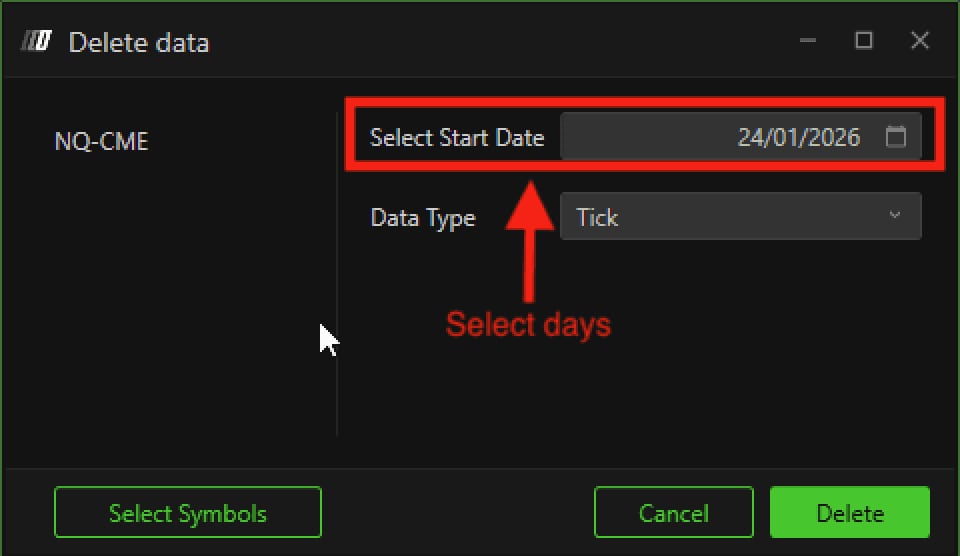
NQ-CME selected on the left, Select Start Date highlighted, Data Type on Tick.© DeepCharts - 05
Click Delete, then restart cleanly
Click Delete and wait for it to finish. Then close the platform, wait about thirty seconds and start DeepChart again. Reconnect the feed and reopen the chart: DeepCharts automatically downloads the erased history and the chart should update normally. This method leaves the rest of the database, your account and your subscription untouched, so it is safe to use as often as needed.
- 06
Fallback: delete the symbol folder by hand
If the chart still does not move after Delete Data, or file path errors keep coming back, the symbol's files are probably corrupted through and through. Open Options > Settings > Various and copy the Database Folder path. Quit DeepCharts, open Windows File Explorer and paste that path into the address bar. Each instrument has its own folder there, named symbol then exchange (NQ-CME, GC-COMEX, FDAX-EUREX). Delete only the affected instrument's folder, not the others. Deleting the whole Database folder is a full reset, covered in the "Maintaining and repairing the DeepCharts database" tutorial.
- 07
Restart DeepCharts and check what came back
Always restart DeepCharts after deleting a folder: skipping the restart can cause file path errors. Reopen the chart: DeepCharts recreates the symbol folder and downloads fresh data automatically, with no effect on your account or your feed. Check the erased period candle by candle on a short timeframe: if the gaps are gone, you are done.
Settings, tab by tab
The built-in method, to try first. Feed disconnected and workspaces closed.
Opens the symbol list. Tick only the affected instrument.
Two to three days before today for a recent freeze, fifteen days or more before the error for corrupted history.
For corruption, DeepCharts recommends clearing both Tick and Minute.
Erases the symbol's history from the chosen date. Cancel closes without deleting anything.
The fallback when Delete Data is not enough. DeepCharts closed.
Paste it into the File Explorer address bar.
The only folder to delete. Leave other instruments' folders alone.
⚠ Traps to avoid
- Deleting with the feed still connected or a workspace open. DeepCharts keeps writing to the symbol's files while you erase them, and the problem comes straight back.
- Jumping straight to the manual method. DeepCharts reserves it for cases where the built-in method failed: Delete Data is safer, more targeted and does not require digging through system folders.
- Deleting other symbols' folders "just to be safe". You throw away their local history for no reason while they were working fine.
- Forgetting to restart after a manual deletion. DeepCharts flags it: without a restart, file path errors can show up.
- Erasing more than needed. DeepCharts promises to download fresh data, not to restore everything your database held. Data the platform builds up itself in real time, such as the MBO history Deep Trades relies on, does not download retroactively: a start date set too far back can make it disappear for good.
FAQ
Does deleting market data affect my account or subscription?+
No. Both methods only touch the history stored on your disk: your DeepCharts account, your subscription and your feed configuration stay as they are.
How many days should I erase?+
For a chart that froze recently, two to three days before today is enough. For corrupted history, go back before the problem started, fifteen days or more. The further back you go, the more data has to download again.
Should I delete the symbol folder or the whole Database folder?+
The symbol folder, when only one instrument is affected. The whole Database folder is a full reset that wipes the history of every instrument, reserved for the cases described in the "Maintaining and repairing the DeepCharts database" tutorial.
My chart is still wrong after both methods, what now?+
Check that the market is assigned to the right connection profile in Manage Symbols and that your subscription covers that exchange. If everything checks out, open a ticket with DeepCharts support, including a screenshot of the problem and a description of what you already tried.
Want to get better at order flow?
We discuss flow, liquidity and our trades live, every day, on the OrderFlowFutures Discord. Join us, it's free.
Join the Discord for free9 online·82 members·Free · instant access