Published
The DeepChart module's Risk Manager enforces your risk rules automatically: as soon as a limit is breached, the account goes into Lockout for the session or for a chosen duration. Prerequisite: DeepChart open, since it runs client side. This tutorial covers the Portfolio window, the account or connection choice, every limit section, EST trading hours, permitted symbols and unlocking.
- DeepChart running with at least one active connection, SIM or broker: the Risk Manager runs on your machine, with the platform closed it does nothing
- Your limits written down before you enter them, and for a prop account, the firm's rules in front of you
Step by step
- 01
Open the Portfolio window
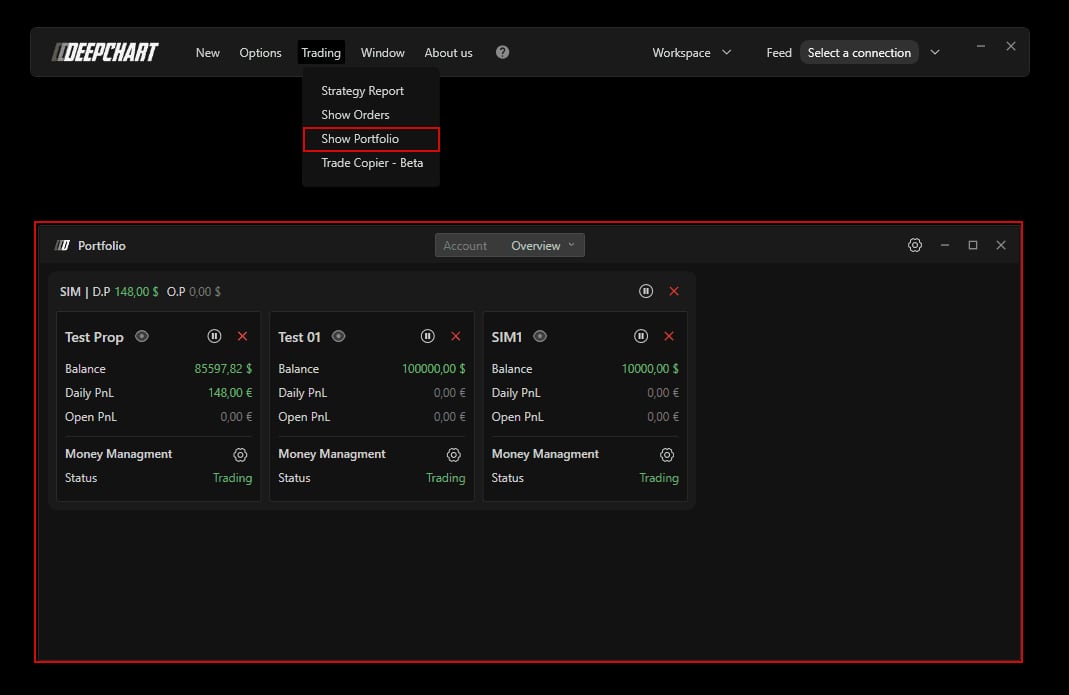
In the DeepChart menu bar, open Trading then Show Portfolio. The Overview tab shows one card per connection (SIM, Rithmic, dxFeed depending on what you use) and, inside it, one card per account. The connection header shows its name, its D.P (day's profit across all its accounts) and its O.P (unrealised). Each account card shows Balance, Daily PnL and Open PnL, then a Money Managment line with its gear and the account's Status. The Overview list at the top also lets you switch to a specific account.
- 02
Know the instant controls: pause and close
Before any rule, two buttons act immediately. On the right of the connection header, pause locks every account under the connection for 1, 10, 30 or 60 minutes, or for the whole session, and the cross flattens all their positions instantly. Each account card has the same pair for itself alone. During a pause, the Status switches to Lockout with a Resume in countdown. That is the move to make after a losing streak, before you have even set a single threshold.
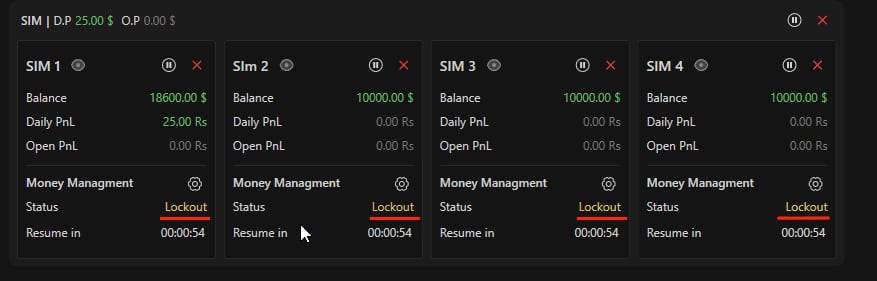
Four SIM accounts paused from the connection, each in Lockout with a Resume in at 00:00:54.© DeepCharts - 03
Choose the level: account or connection
Click the gear on an account's Money Managment line. A small menu offers Settings (account), for rules specific to that account, and Settings (connection), for rules covering the whole connection. That differs from the DeepDom Risk Manager tutorial, which only shows the account gear. For prop accounts with different rules, configure each account separately; for an overall cap, go through the connection.
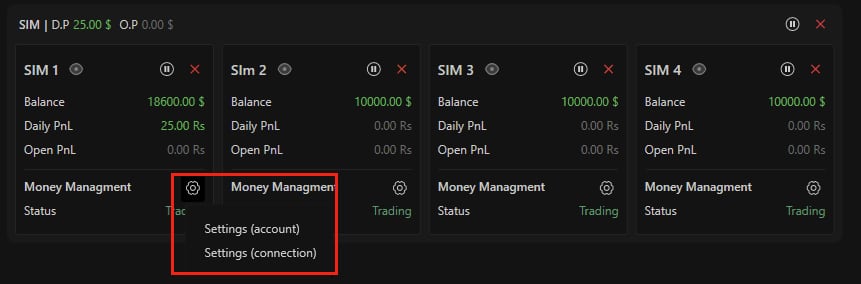
The Money Managment gear menu with Settings (account) and Settings (connection).© DeepCharts - 04
Turn the manager on and frame the symbols
The window is titled Money Managment Settings (client side), and that title sums up the main constraint: enforcement happens on your machine. The GENERAL section arrives with Enable off, so nothing is enforced until you switch it on. Symbols - All categories is on and Symbols - Filter category on Future in the screenshot. Symbols - Exclude not listed, off, is the guardrail to know: switched on, only symbols added by hand to the Symbols list can be traded. Add MNQ only, and an order sent to NQ by mistake gets blocked.
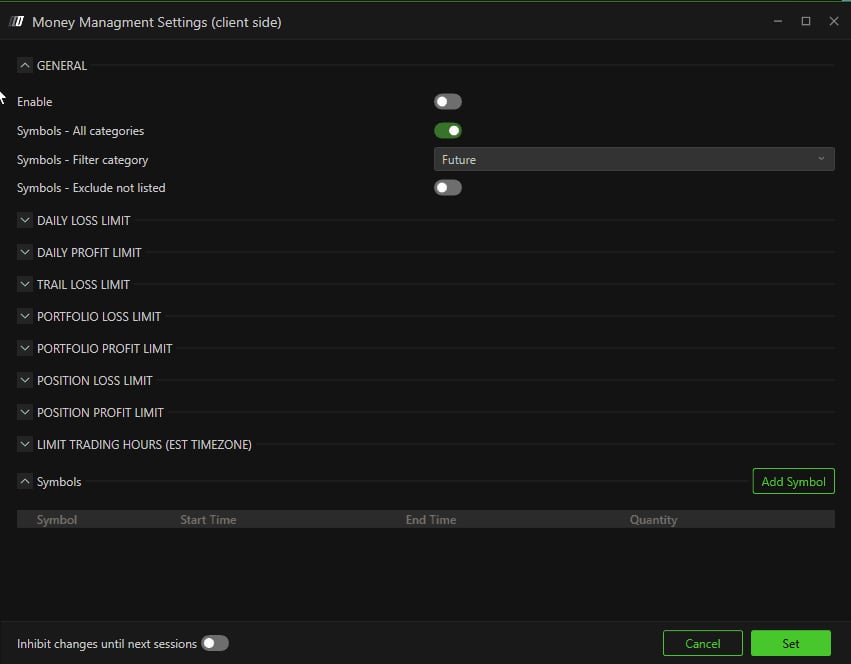
The Money Managment Settings (client side) window with the GENERAL section and the list of limit sections.© DeepCharts - 05
Set the daily limits and the trailing limit
DAILY LOSS LIMIT sets the maximum loss for the day: Enable, Value (0 in the screenshot) and Unit, Money or Percentage. DAILY PROFIT LIMIT does the same for gains, plus Include open positions, which closes open trades as soon as the limit is reached. TRAIL LOSS LIMIT, called Trailing Stop (Daily Trailing Drawdown) in the documentation, adds Action, Include open positions and Pause time (minutes). Action offers Daily pause (locked for the session, the value in the screenshot), Timed pause (locked for the Pause time duration, Time Pause in the documentation) and Flat (positions closed, no lock). With Include open positions on, the limit also tracks unrealised P/L: if open profit gives back more than the limit, the action fires.
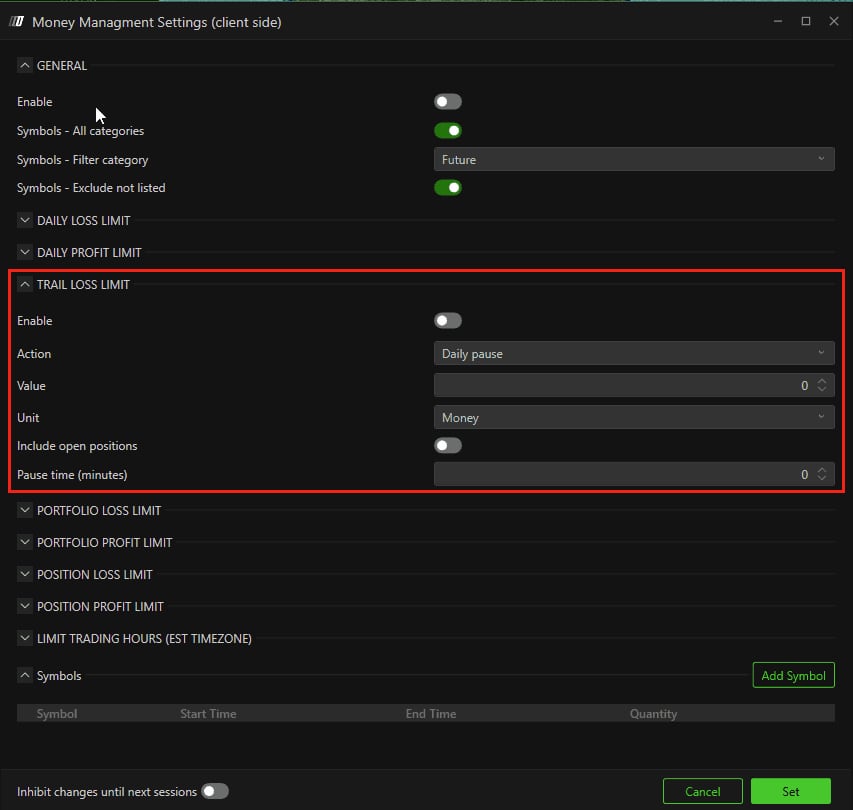
The TRAIL LOSS LIMIT section with Action on Daily pause, Value at 0, Unit on Money and Pause time at 0.© DeepCharts - 06
Add the portfolio and position layers
PORTFOLIO LOSS LIMIT watches the combined loss of all open positions: an ES and an NQ can each look reasonable while their sum exceeds what you accept. In the DeepChart screenshot, the section carries Enable, Action, Value, Unit and Pause time (minutes), without the Cumulative per symbol field shown in the DeepDom tutorial. PORTFOLIO PROFIT LIMIT applies the same logic to gains. POSITION LOSS LIMIT and POSITION PROFIT LIMIT go down to a single trade: on a breach, the position is flattened automatically and the chosen action fires.
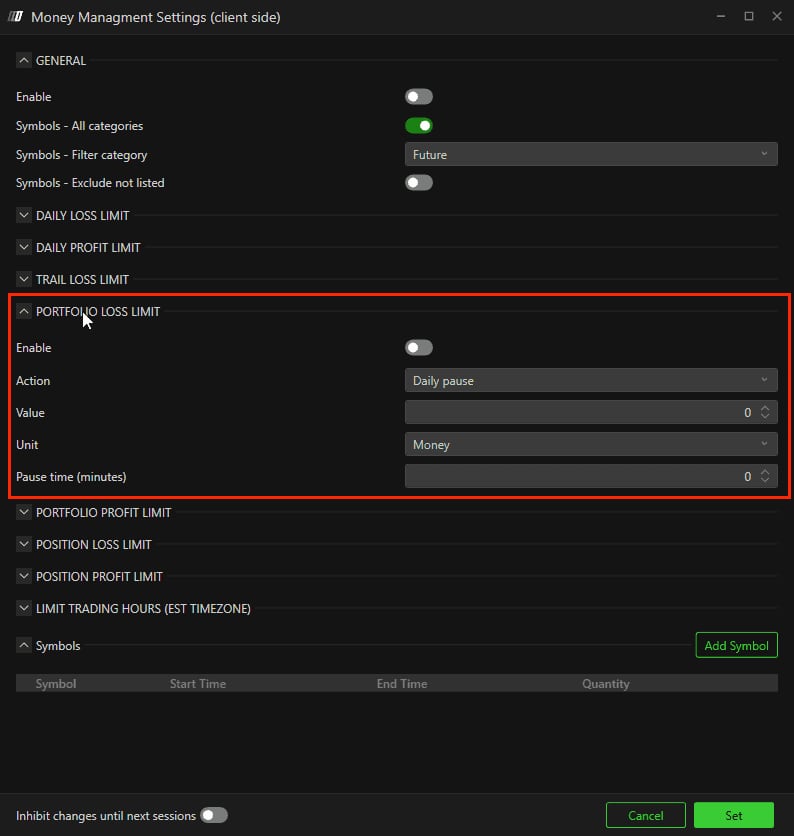
The PORTFOLIO LOSS LIMIT section with Enable, Action on Daily pause, Value, Unit on Money and Pause time.© DeepCharts - 07
Bound the hours, list the symbols, freeze the settings
LIMIT TRADING HOURS (EST TIMEZONE) restricts trading to a Begin and End window (00:00:00 in the screenshot), always in EST, whatever your PC's or chart's timezone. From London, count five hours' difference most of the year, and double check around clock changes. The Symbols section lists permitted symbols with Add Symbol; each row shows Symbol, Start Time, End Time and Quantity, with a bin and a gear. At the bottom, Inhibit changes until next sessions defers any change to the next session, and a message confirms it. That is the real protection against yourself: no loosening a limit at the moment it gets in the way. Save with Set.
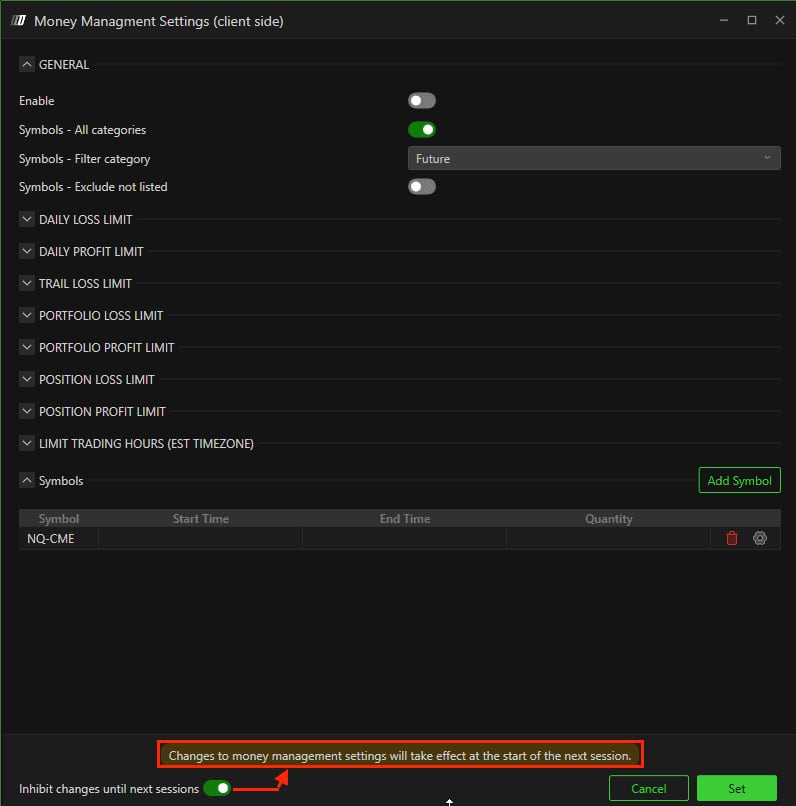
The window with NQ-CME in the Symbols list and Inhibit changes until next sessions switched on.© DeepCharts - 08
Read the lock and the detailed view
When a rule is breached, the Status switches to Lockout with a Resume in countdown. Daily resets follow the CME timezone (EST): an account locked for the day reopens by itself at 18:00 EST. Before then, the documentation is clear: the only way to unlock it is to ask DeepChart support to do it on the backend, and that can take some time. To understand what triggered the lock, an account's Eye button opens its detailed view: one row per symbol with Daily Pnl, Daily Net, Open Pnl, Quantity and Price.
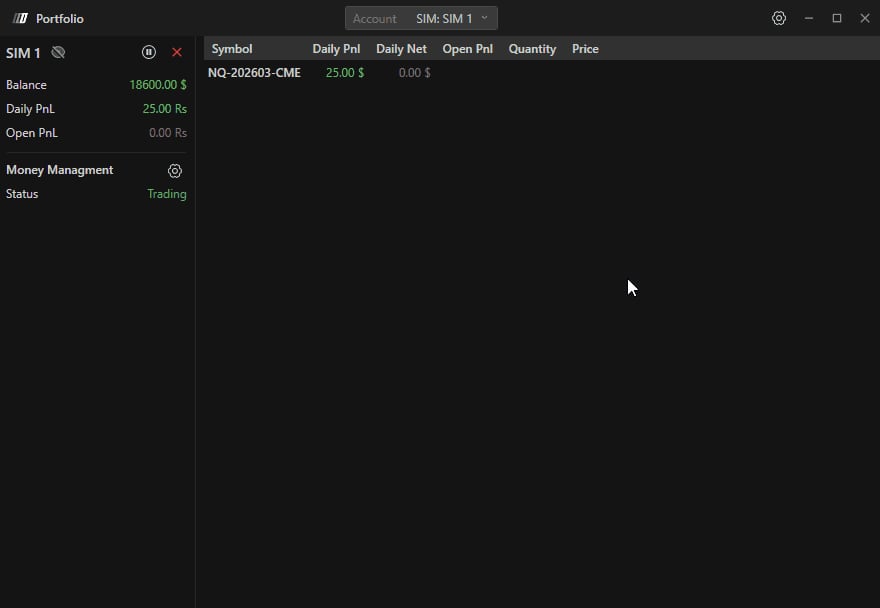
The detailed view of account SIM 1, with the NQ-202603-CME row and its result columns.© DeepCharts
Settings, tab by tab
Trading, then Show Portfolio. These controls act without any rule being set.
The list also opens a specific account.
Day's profit and unrealised across every account of the connection.
At connection or account level. Lockout status with a countdown.
The whole connection, or just the account.
Plus the Eye button, the Money Managment line and the Status.
Money Managment Settings (client side) window.
Nothing is enforced while it is off.
Switched on, only symbols in the Symbols list can be traded.
Maximum loss or gain for the day.
Or Percentage.
DAILY PROFIT LIMIT only: closes open trades once the limit is reached.
Trailing Stop (Daily Trailing Drawdown) in the documentation.
Daily pause: locked for the session. Timed pause: locked for Pause time. Flat: closed without a lock.
Money or Percentage.
Switched on, the limit also applies to unrealised P/L.
Used with Timed pause (10 in the screenshot showing that option).
Combined loss of all open positions, ES and NQ together for instance.
On a breach, the position is flattened and the action fires.
Always in EST, regardless of the PC's or chart's timezone.
Columns Symbol, Start Time, End Time, Quantity, with delete and gear per row.
Switched on, any change only applies from the next session.
Lockout shows a Resume in countdown.
CME timezone.
On the backend, and it can take some time.
⚠ Traps to avoid
- Believing the Risk Manager protects you around the clock. It runs client side: platform closed, PC asleep or connection lost, and no rule is watching whatever is still open at the broker.
- Entering limits and leaving Enable off. The GENERAL section arrives switched off in the screenshot: rules in a switched off manager apply to nothing.
- Assuming the daily loss limit lets you choose its action. The documentation says that on a DAILY LOSS LIMIT breach "the selected action" fires, yet the screenshot of that section only shows Enable, Value and Unit. Check what actually happens in your version, on a SIM account, before relying on it.
- Choosing Flat as the action. Closing without locking lets you reopen a position a minute later: if the point is to stop, use Daily pause.
- Copying your prop firm's limits one for one. The Risk Manager computes from what it sees in DeepChart, the prop firm from its own rules and its own calculation: set your thresholds a notch inside the firm's to keep a margin.
- Setting a very tight limit without knowing the way out. An account locked for the day only reopens by itself at 18:00 EST; before that, only DeepChart support can unlock it, and not instantly.
FAQ
How does it differ from the DeepDom Risk Manager?+
The principle and the Money Managment Settings (client side) window are the same. The DeepChart sources do however show the Settings (account) or Settings (connection) choice, DAILY LOSS and DAILY PROFIT sections without an Action field in the screenshots, an option named Timed pause, a PORTFOLIO LOSS LIMIT without Cumulative per symbol, and unlocking through DeepChart support.
Does the Risk Manager work when DeepChart is closed?+
No. It operates client side, as the documentation and its own window title say: if the platform is closed, the manager does not run. A position left open with the platform closed is watched by none of your rules.
How do I unlock an account in Lockout?+
A temporary lock lifts at the end of its Resume in countdown. A lock for the day lifts automatically at 18:00 EST. Before then, the only route is asking DeepChart support to unlock the account on the backend, which can take some time.
Should I set rules per account or per connection?+
The Money Managment gear offers both. Per account when your accounts have different limits, typically several prop accounts of different sizes. Per connection when you want a common cap across every account on that connection.
Which timezone are the hours set in?+
EST, the CME timezone, as the LIMIT TRADING HOURS (EST TIMEZONE) title says, regardless of your PC's or chart's timezone. The daily reset follows the same timezone, at 18:00 EST.
Want to get better at order flow?
We discuss flow, liquidity and our trades live, every day, on the OrderFlowFutures Discord. Join us, it's free.
Join the Discord for free9 online·82 members·Free · instant access