Published
DeepCharts keeps every bit of market history it displays in a local database. Over time that database grows and slows the platform down, especially on a virtual machine. The Migrate / Compress utility shrinks it without losing anything, as long as the workspace is closed and every feed is disconnected. This tutorial covers that routine upkeep, then the heavier fixes: resetting the Database folder, missing real time data and Connection failed.
- DeepCharts installed and already in use (a fresh database has nothing to compress)
- Some time outside the session: compression takes several minutes and the platform is unusable meanwhile
- A laptop plugged into mains power, or a desktop that will not go to sleep
Step by step
- 01
Pin down the symptom before touching the database
Each problem has its own fix, and the heaviest one is never the first to try. Slow startup, a filling disk, DeepCharts dragging under Parallels: that is maintenance, use Migrate / Compress. A single symbol with gaps, wrong prices or a frozen chart: the whole database is not at fault, follow the "Deleting market data in DeepCharts" tutorial instead, which wipes the history of one instrument. An empty chart while the feed is connected: check how markets are assigned in Manage Symbols. A Connection failed notification: that is a Windows component, not the database. The Database folder only gets deleted as a very last resort.
- 02
Close the workspace and disconnect every feed
The utility will not run while the database is being written to: forget this and DeepCharts stops you with "Please close workspace and disconnect all feeds". Close the workspace from the dropdown at the top (Untitled, or your workspace's name), then disconnect each connection from the Feed menu right next to it. If two feeds are live, say a data feed and a prop firm connection, disconnect both.
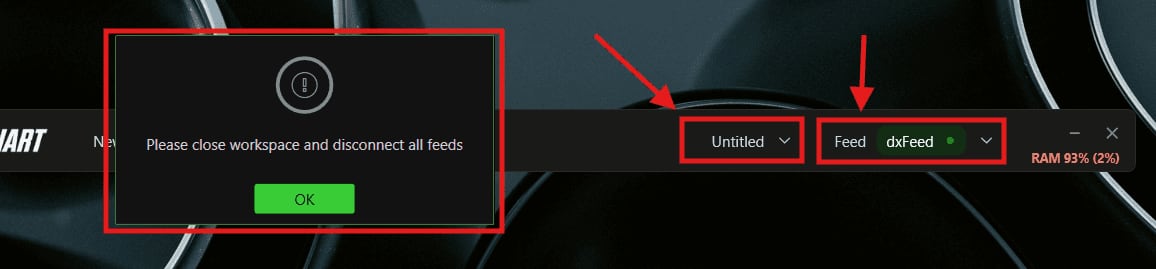
The Please close workspace and disconnect all feeds message, with the Untitled and Feed menus highlighted.© DeepCharts - 03
Run Migrate / Compress and confirm
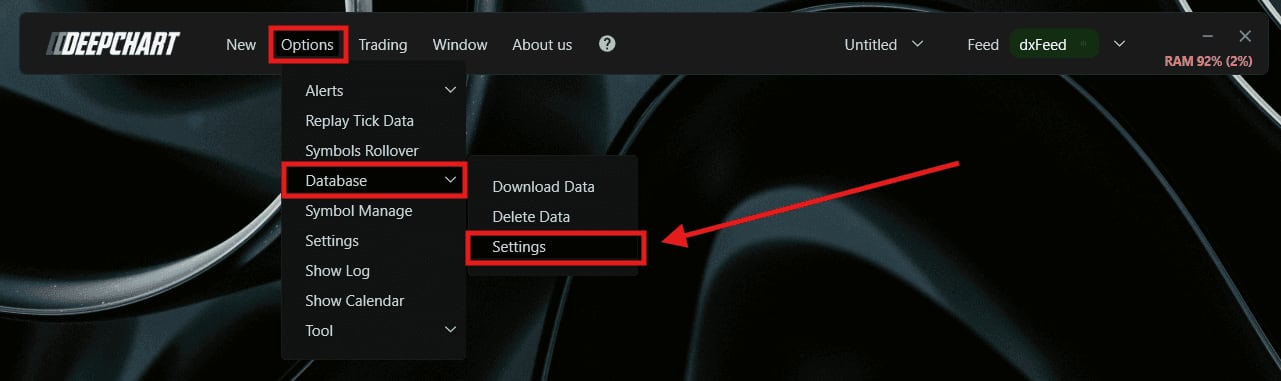
Go to Options > Database > Settings and pick Migrate / Compress. A confirmation window warns that the job takes several minutes, is best run after the session or at the weekend, and that the computer must not be shut down while it runs. Click Yes. For an NQ or ES trader the natural slot is after the Friday close, when the platform is not needed again before Sunday evening.
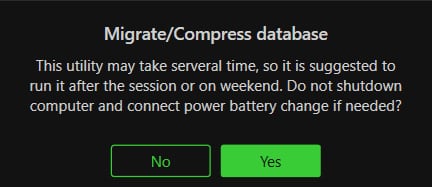
The Migrate/Compress database confirmation with its No and Yes buttons.© DeepCharts - 04
Confirm the Utility window and let it finish
The Utility window opens with the Compress option switched on. Click OK and let it run to the end, without closing DeepCharts or letting the machine sleep. DeepCharts quotes up to a 90% smaller database, with faster startup and a smoother platform. The difference is most noticeable on a Mac running Parallels, or any other virtualization, where the virtual disk is slower than a native SSD.
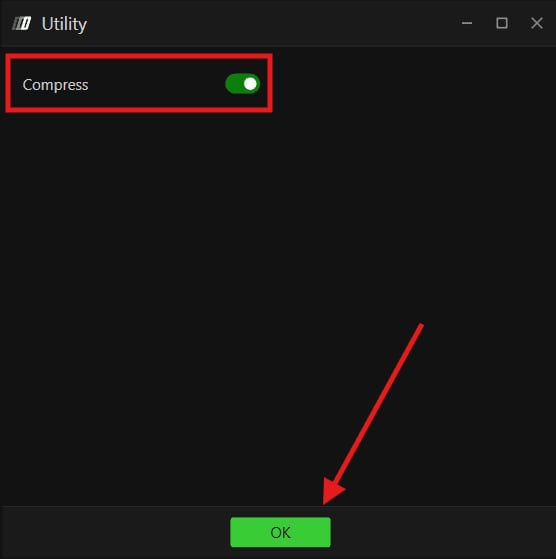
The Utility window with the Compress toggle on and the OK button.© DeepCharts - 05
Reset the database by deleting the Database folder
When corruption hits several symbols, or DeepCharts misbehaves everywhere despite compression, start again from an empty database. Open Options > Settings > Various and copy the path shown in Database Folder. Disconnect the feed, close every workspace and quit DeepChart. Open Windows File Explorer, paste the path into the address bar, delete the Database folder, then restart DeepChart. All local history goes at once: whatever history your data vendor serves will download again, the rest will not. If only one instrument is affected, the "Deleting market data in DeepCharts" tutorial shows how to remove just its folder.
- 06
No real time data: check how markets map to the feed
An empty or frozen chart while the feed is connected often means the market is tied to the wrong connection profile, typically after adding a second feed. Close every workspace, open Options > Manage Symbols (Symbol Manage in the menu) and check that each market shows the right connection profile next to Name. If not, select those markets, right click in the data feed column, pick the correct connection and click Select. Close Manage Symbols, reconnect the feed and open a new chart. Also make sure your vendor subscription actually covers that exchange: CME for NQ and ES, COMEX for GC.
- 07
Connection failed: reinstall Visual C++
A notification such as "L1 CME: Connection failed" when connecting the feed does not come from the database but from a missing or damaged Windows library. Quit DeepChart, download and install Visual C++ (the link is in the DeepCharts help center article), then restart the software and reconnect the feed. If a different message shows up instead, such as a file that cannot be found or a prop firm datafeed that needs signing, that is a separate issue from the database.

The L1 CME: Connection failed notification at the bottom of the screen.© DeepCharts
Settings, tab by tab
The routine maintenance utility. Workspace closed and feeds disconnected are mandatory.
Starts migrating and compressing the local database.
Confirmation: the job lasts several minutes, run it outside the session with the computer plugged in.
Toggle in the Utility window, confirmed with OK.
Where DeepCharts shows the location of its database on disk.
Copy it to open the folder in File Explorer. Deleting it wipes all local history.
How each market is tied to a connection profile.
The right connection profile name must show next to it.
Right click to assign the selected markets to the correct connection.
Saves the assignment. Then reconnect the feed and open a new chart.
⚠ Traps to avoid
- Running compression mid-session. It takes several minutes with the workspace and feeds closed: on a fast NQ tape that is a position you are no longer watching. Keep it for the evening or the weekend.
- Shutting down or sleeping the computer while it runs. DeepCharts explicitly warns against it: a laptop on battery dying halfway through compression is the surest way to create the corruption you were trying to prevent.
- Deleting the whole Database folder for a problem that only affects one symbol. You lose the local history of every instrument instead of one. Start with the targeted deletion; the whole folder comes last.
- Deleting the Database folder with DeepChart still open. The files are locked or rewritten straight away: quit the software completely before going through File Explorer.
- Looking for a subscription problem in the database. If your vendor account does not cover an exchange, no compression or deletion will bring its real time data: check the subscription and the Manage Symbols assignment.
FAQ
How often should I run Migrate / Compress?+
DeepCharts recommends running it periodically without setting a schedule. In practice, once a month is enough for daily use, more often under Parallels or if you follow many instruments, and whenever startup starts to drag.
Does compression erase my history?+
No, it shrinks the database without deleting data. That is exactly what sets it apart from Delete Data and from deleting the Database folder, both of which remove history.
What happens after I delete the Database folder?+
On restart DeepChart creates an empty database and downloads again whatever history your data vendor provides. Anything the platform only recorded locally, session after session, does not come back: that is why this option comes after every other one.
Why does my chart stay empty while the feed is connected?+
Usually the market is tied to the wrong connection profile in Manage Symbols, or your subscription does not cover that exchange. If the market is assigned correctly and only the history is wrong or frozen, a targeted data deletion is what you need.
Want to get better at order flow?
We discuss flow, liquidity and our trades live, every day, on the OrderFlowFutures Discord. Join us, it's free.
Join the Discord for free9 online·82 members·Free · instant access