Published
Before touching any indicator, DeepCharts needs a connected data feed. The setup happens in two distinct stages: create a feed profile (credentials, server), then attach it to an exchange. Many blockages come from a profile filled in correctly but never attached to an exchange, which leaves the chart without data despite a seemingly complete configuration.
- An active data feed subscription (username and password provided at purchase)
- An account on my.deepcharts.com
Step by step
- 01
Log in to the portal
Go to my.deepcharts.com and log in with your DeepCharts account. This is where a feed profile is created, not in the software itself.
- 02
Open the connection selector
Find the button that opens the connection selection and feed settings panel. It is the single entry point to create, edit or attach a profile.

The interface with the button that opens the feed configuration panel.© DeepCharts - 03
Fill in the feed profile
Enter a profile name (free text, to find your way around if you create several), the source of the purchased feed, the username and password provided at purchase, and the server tied to your DeepCharts account. These credentials belong to the feed, not to your DeepCharts account.
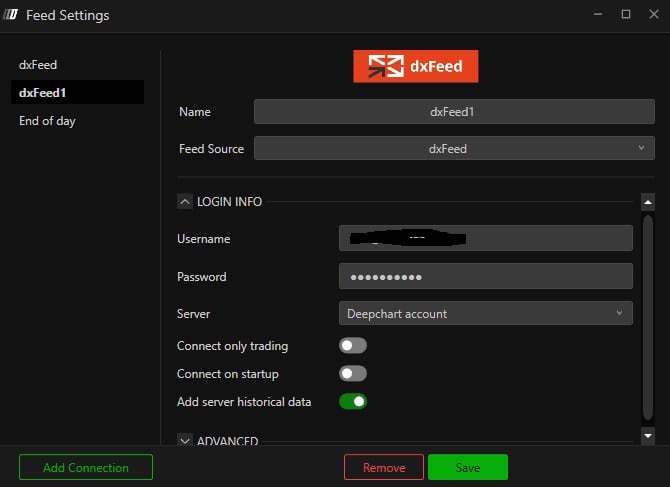
The feed profile form with its profile name, source, credentials and server fields.© DeepCharts - 04
Connect and check
Start the connection. A visual indicator confirms whether it succeeded. If it fails, check the server name first: an otherwise correctly filled profile will not connect if the server does not match the one provided with the feed access.
- 05
Disconnect temporarily
Before attaching the profile to an exchange, cut the connection. It is a safety step of the DeepCharts procedure, not an optional one: attaching an exchange is done with the profile disconnected.
- 06
Open the symbol manager
Access the symbol management options from the same panel. This is where each exchange gets a feed profile assigned.
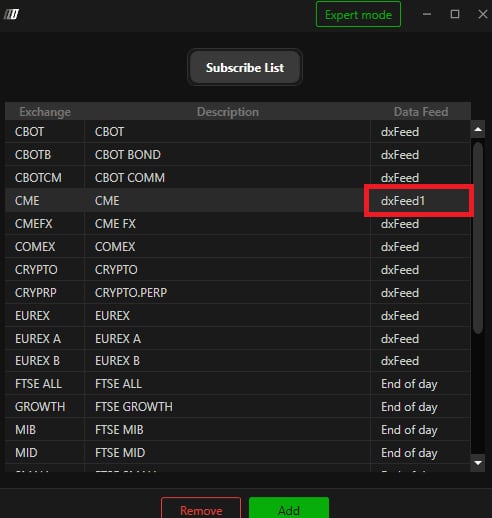
The symbol manager with the exchange list and the Data Feed column.© DeepCharts - 07
Attach an exchange to the profile
From the exchange list (right click to add one if it is not there yet), assign the profile created at step 3 in the Data Feed column. Without this explicit attachment, the profile exists but feeds no exchange.
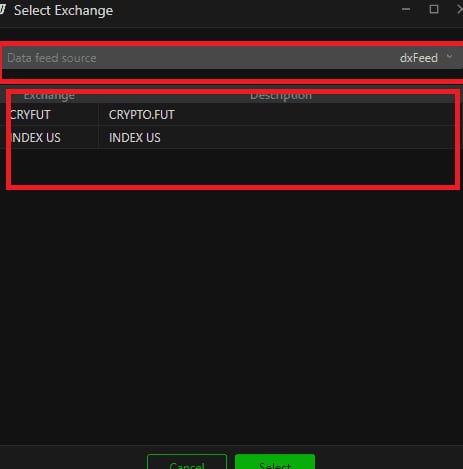
The add exchange dialog with the search field and the feed assignment.© DeepCharts - 08
Reconnect
Restart the profile's connection, now attached to its exchange or exchanges.
- 09
Check on a chart
Open a chart on an instrument of the attached exchange. Data should display. If the chart stays empty while the connection is active, recheck the exchange/profile attachment of step 7 first, more often at fault than the connection itself.
Settings, tab by tab
Only there to tell profiles apart if several exist.
The feed purchased beforehand, specific to this profile.
Belongs to the feed, distinct from the DeepCharts account password.
Must match exactly the server provided with the feed access.
Every exchange you want displayed must appear in the symbol manager.
The most often forgotten step: a connected but unattached profile feeds no chart.
⚠ Traps to avoid
- Creating a valid feed profile, connecting it, and stopping there. A connected profile feeds no exchange until it has been explicitly attached in the symbol manager (step 7). It is the most frequent blockage, and it looks like a connection problem even though the connection itself works.
- Attaching the exchange before disconnecting the profile. The procedure expects a disconnected profile at attachment time (step 5): when in doubt, disconnect, attach, then reconnect.
FAQ
The chart stays empty while the feed is connected, what should I check?+
First the attachment between the exchange and the feed profile, in the symbol manager. A properly connected profile that was never attached to the exchange shown on the chart will bring up no data.
Can several feed profiles be configured?+
Yes, nothing prevents creating several profiles, for instance one per data provider. The profile name is there precisely to tell them apart.
Does this procedure need to be redone after a DeepCharts update?+
No, the profile and its attachment stay saved. This procedure only comes back when changing feeds, moving to a new machine, or diagnosing a blockage.
Want to get better at order flow?
We discuss flow, liquidity and our trades live, every day, on the OrderFlowFutures Discord. Join us, it's free.
Join the Discord for free5 online·79 members·Free · instant access