Published
DeepChart takes the CQG credentials your broker issues through a dedicated connection in Feed Settings. The key prerequisite is knowing whether your CQG access includes a market data feed or only order execution, because in the second case you need a dxFeed or Rithmic feed alongside it. This tutorial covers the credentials, the form, the Symbol Manager, the chart and DeepDom.
- An account with a broker that issues CQG credentials
- The CQG credentials themselves (username and password), from the broker's email or client dashboard
- DeepChart installed with an active licence
- Your broker's answer to one simple question: does my CQG include a data feed, or execution only?
- The general feed profile and exchange logic, covered in our tutorial "Connecting a data feed to DeepCharts"
Step by step
- 01
Ask your broker what your CQG covers
This is the question everything else hinges on. Some brokers deliver CQG as a full market data feed, others only as an execution route. In the second case you still connect CQG the exact same way, but your charts must keep running on a dxFeed or Rithmic feed. Get the answer in writing before you start: it saves you an evening wondering why NQ stays blank while the connection light is green.
- 02
Get the CQG credentials, not the broker login
Your broker sends a CQG username and password that are separate from the ones you use to log into their client portal. Look in the account opening email, or in the broker dashboard under platform credentials. Those, and only those, go into DeepChart.
- 03
Open Feed Settings
In the DeepChart menu bar, click Select a connection next to Feed: your list of connections drops down, with Feed Settings at the bottom. That is where the CQG connection is created.
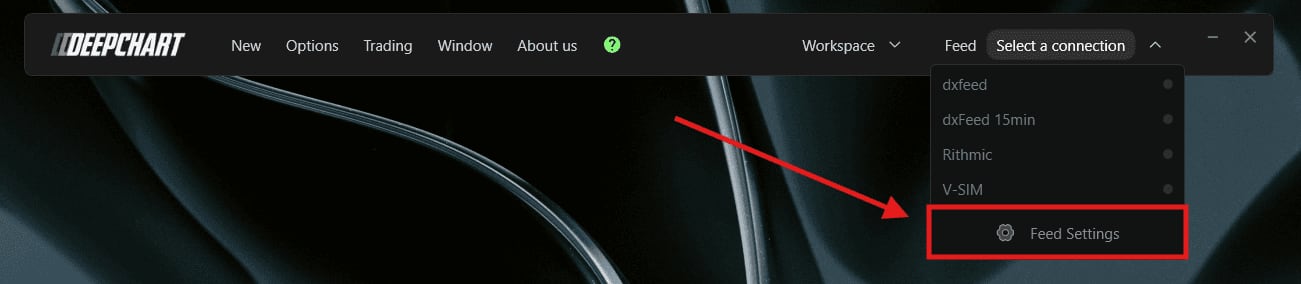
The DeepChart Feed menu open, Feed Settings highlighted under the connection list.© DeepCharts - 04
Fill in the CQG connection
Add Connection, then Name (a label that says exactly what it is, CQG plus the broker name works well), Feed Source set to CQG, and under LOGIN INFO your CQG Username and Password. Paste the password with no leading or trailing space: it is a silent failure cause. Turn on Use demo credential only if your credentials belong to a CQG demo account, and Connect on startup if you want DeepChart to connect on its own every time it launches.
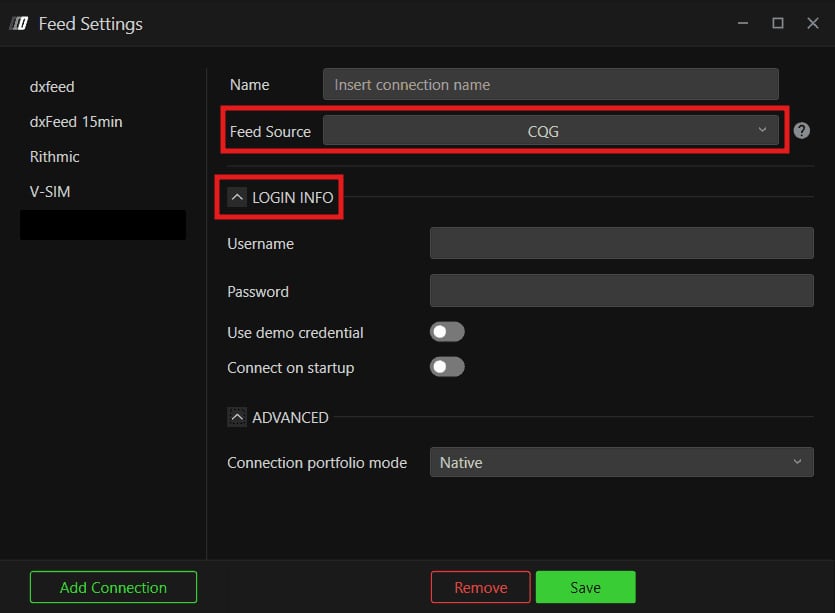
The Feed Settings window set to CQG, with Username, Password, Use demo credential, Connect on startup and Connection portfolio mode.© DeepCharts - 05
Pick the portfolio mode
The ADVANCED section holds Connection portfolio mode, set to Native by default: positions are then read straight from the broker. Avg Price has DeepChart work out the position from the average price. Stay on Native unless you have a specific reason to switch: it is what keeps the chart in line with what your broker actually records.
- 06
Save, then connect
Save, then pick the new CQG connection from the Feed menu to start it. The dot next to its name turns green once the connection is up.
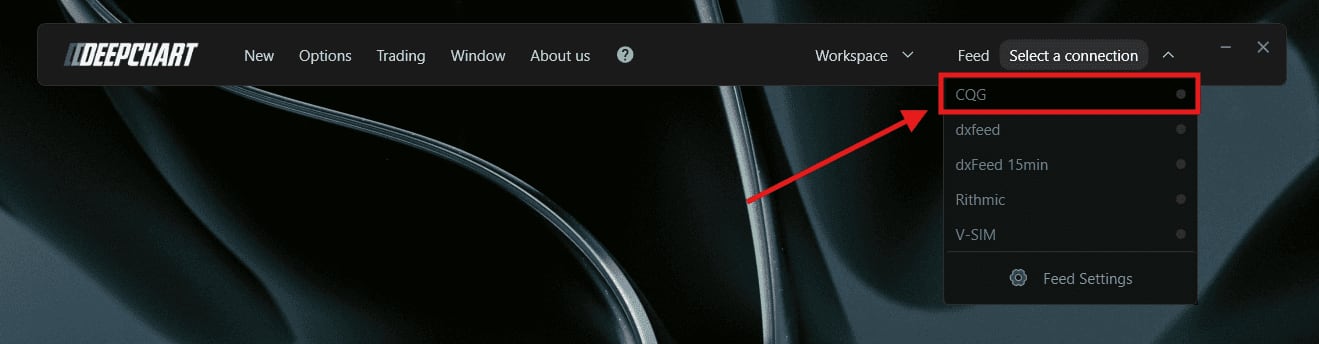
The DeepChart Feed menu with the CQG connection highlighted at the top of the list.© DeepCharts - 07
Map the exchange to CQG (if CQG provides data)
Options, then Symbol Manager. Find the exchange your contracts trade on (CME for ES, NQ, MES, MNQ) and check the Data Feed column. If the exchange is listed, right click its Data Feed cell (or use Change connection), choose your CQG connection and confirm with Set. If it is missing, add it (the button reads Subscribe on screen) and assign CQG to it. If your CQG is execution only, skip this step: the exchange has to stay on dxFeed or Rithmic.
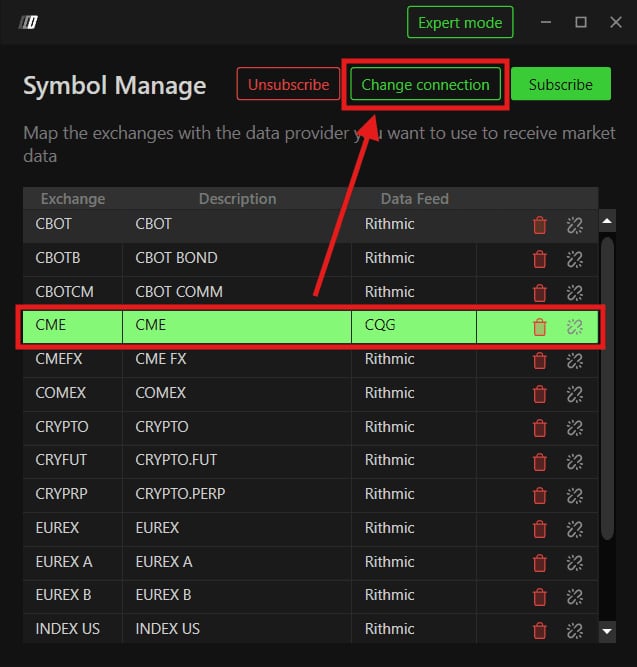
The DeepChart Symbol Manage window, CME row mapped to CQG in the Data Feed column.© DeepCharts - 08
Open a chart
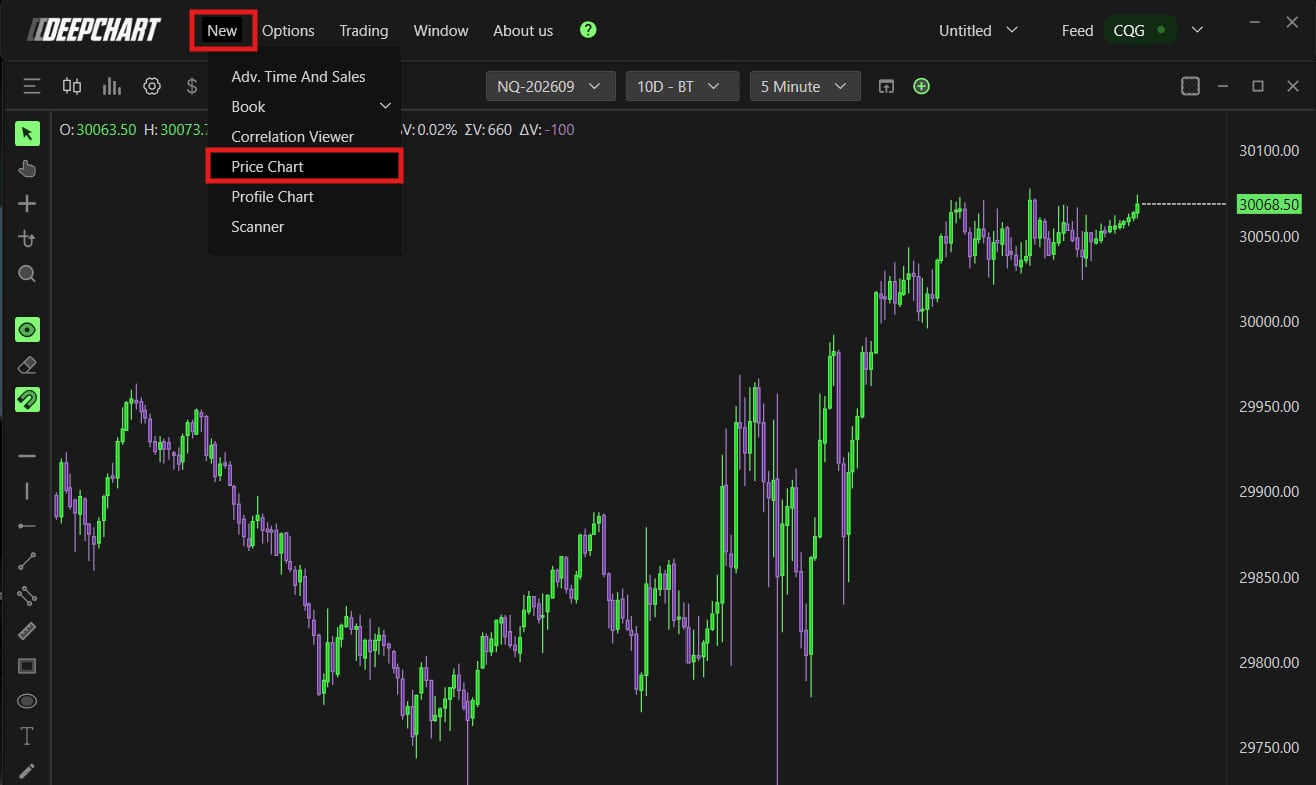
New, Price Chart, choose your instrument (ES or NQ for example), then OK. The chart loads with live data and the Feed menu shows CQG in green. If the chart stays blank, go back to step 1 before blaming the connection: an execution only CQG will never fill a chart.
- 09
Hook DeepDom to the same CQG
No new credentials needed: DeepChart and DeepDom share the same CQG bridge. In DeepDom, Feed Settings, Add Connection, Feed Source CQG, the same credentials, Save, then connect. One catch: DeepDom only works with Level 2 data. If your broker only passes Level 1 through CQG, you need a dxFeed or Rithmic Market Depth feed for DeepDom.
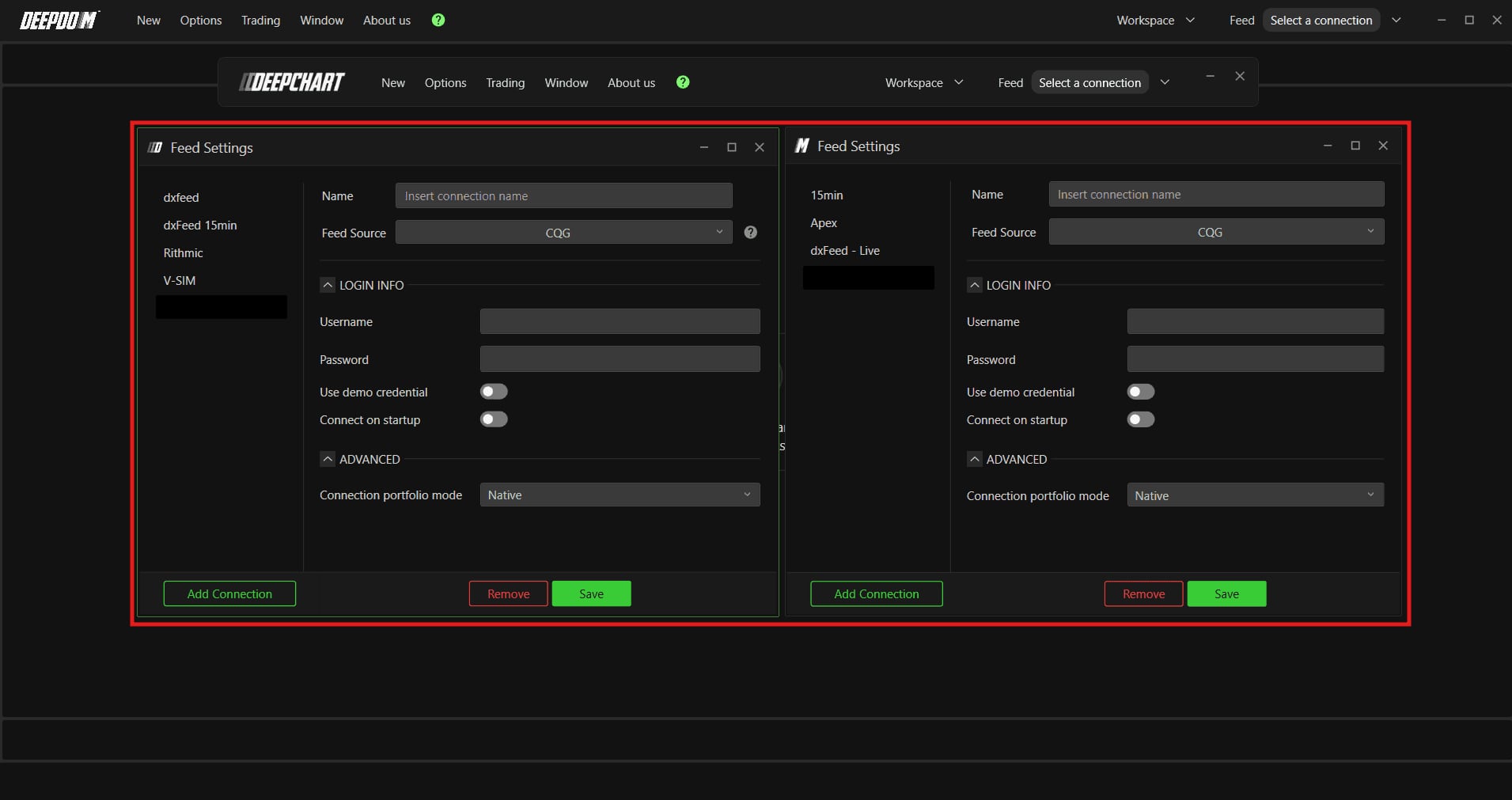
The DeepChart and DeepDom Feed Settings windows side by side, both on CQG.© DeepCharts
Settings, tab by tab
The form fields as they appear once Feed Source is set to CQG.
A clear label, handy as soon as several connections share the Feed menu.
Picked from the dropdown.
Issued by the broker, separate from your client portal login.
No leading or trailing spaces.
Turn on only with CQG demo account credentials, to test before going live.
When on, DeepChart starts this connection at every launch.
Native: positions read from the broker. Avg Price: positions computed by DeepChart from the average price.
Only if your CQG access includes market data.
The exchange of the contracts you trade: CME for ES, NQ and their micros.
Right click the cell or use Change connection, then Set.
Add the exchange and assign CQG as its source.
⚠ Traps to avoid
- Typing your broker portal login instead of the CQG credentials. Both pairs exist, they are not interchangeable, and only the CQG pair opens the connection.
- Mapping CME to a CQG that only handles execution. The connection shows green, no ticks arrive and the chart stays blank. In that setup the exchange stays on dxFeed or Rithmic, and CQG only routes orders.
- A trailing space in the password. Copying from an email often grabs one, and the connection fails without a clear message.
- Leaving Use demo credential in the wrong position. Live credentials with the demo toggle on, or the reverse, and the connection is refused.
- Opening DeepDom on a CQG that only supplies Level 1. DeepDom needs market depth: without Level 2 you need a dedicated dxFeed or Rithmic Market Depth feed.
FAQ
My broker gives me CQG access: do I need another data feed?+
It depends on what your CQG covers. If it includes market data, it is enough for DeepChart. If it is execution only, you still connect it to place orders, but you need a dxFeed or Rithmic feed for the charts. Only your broker can confirm which one you have.
Do I need separate CQG credentials for DeepDom?+
No. DeepChart and DeepDom share the same CQG bridge: create a CQG connection in DeepDom with the exact same credentials and both run at once without conflict. The one condition is that your CQG supplies Level 2 data.
What is the difference between Native and Avg Price?+
In Native, DeepChart shows positions exactly as the broker holds them. In Avg Price, DeepChart computes the position from the average price. Native is the default and the one to keep if you want the chart to match your broker statement exactly.
Can I test the CQG connection without touching my live account?+
Yes, if your broker issues CQG demo credentials: turn on Use demo credential in the form and connect with them. Once the whole chain works down to the chart, create the live connection alongside it.
Want to get better at order flow?
We discuss flow, liquidity and our trades live, every day, on the OrderFlowFutures Discord. Join us, it's free.
Join the Discord for free9 online·82 members·Free · instant access